
Menu Bar
Full access to your daily plan, tucked away
The menu bar appears automatically as long as you have the desktop app running. The nature of the menu bar and it's capabilities differs depending on which operating system you're running.
Use it instead of the focus bar for a less intrusive window into your timer and task list, or in addition to the focus bar to keep focus bar timer notifications with the added shortcuts in the menu bar.
macOS
If you’re on Mac, you’ll see the Sunsama logo in your top Mac menu bar. Click on it to take any number of actions such as: pausing the timer, taking a break, joining a meeting, or completing a task. The menu bar drop down also displays your upcoming calendar events, tasks in today’s list, and other quick links and actions.
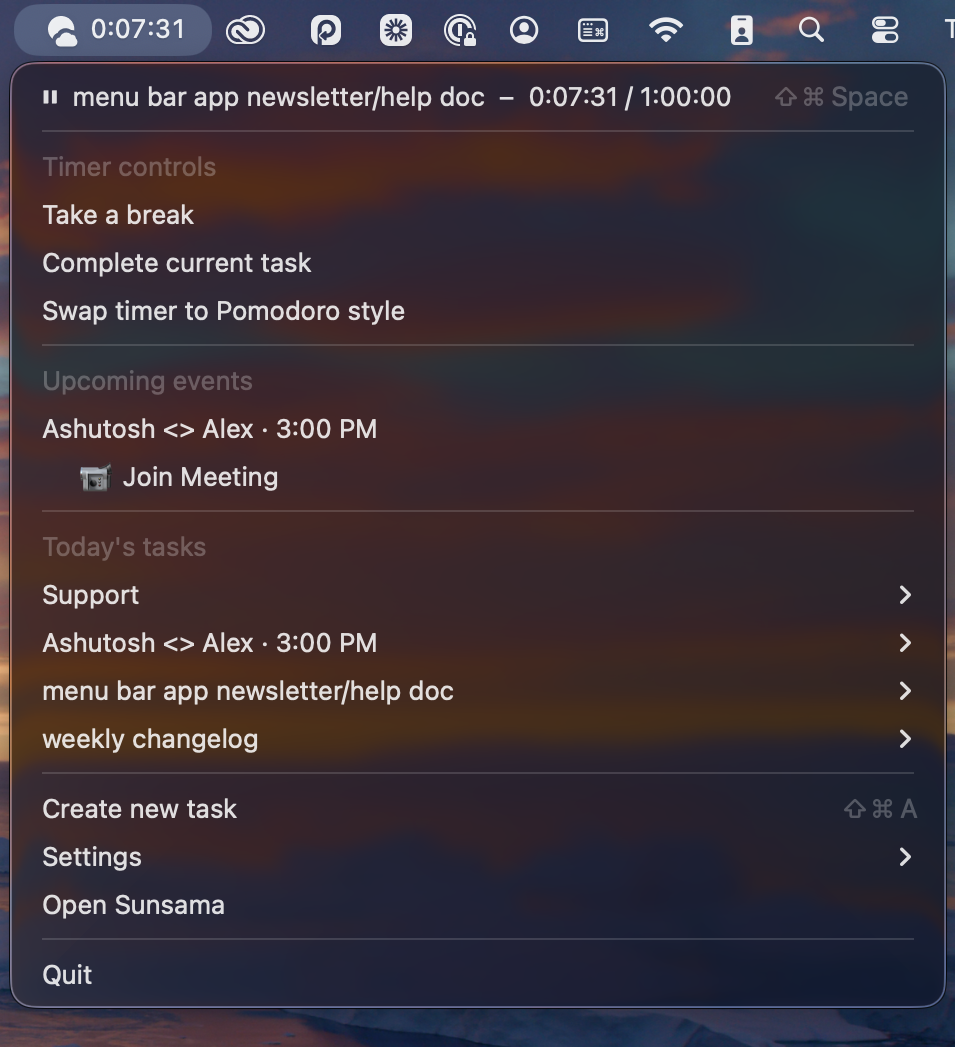
Menu bar icon disappearingmacOS will hide tools in the menu bar without warning or visual indication if you have multiple menu bar tools and there is not enough space beside the notch.
There are several workarounds for this, including a variety of 3rd party apps that let you manage the menu bar, as well as "offloading" some tools to the macOS control center to free up space.
Windows and Linux
We’re a bit limited with what we can do in Windows and Linux compared to macOS, but you can right-click on the Sunsama icon in the tray for an enhanced menu of options and actions.
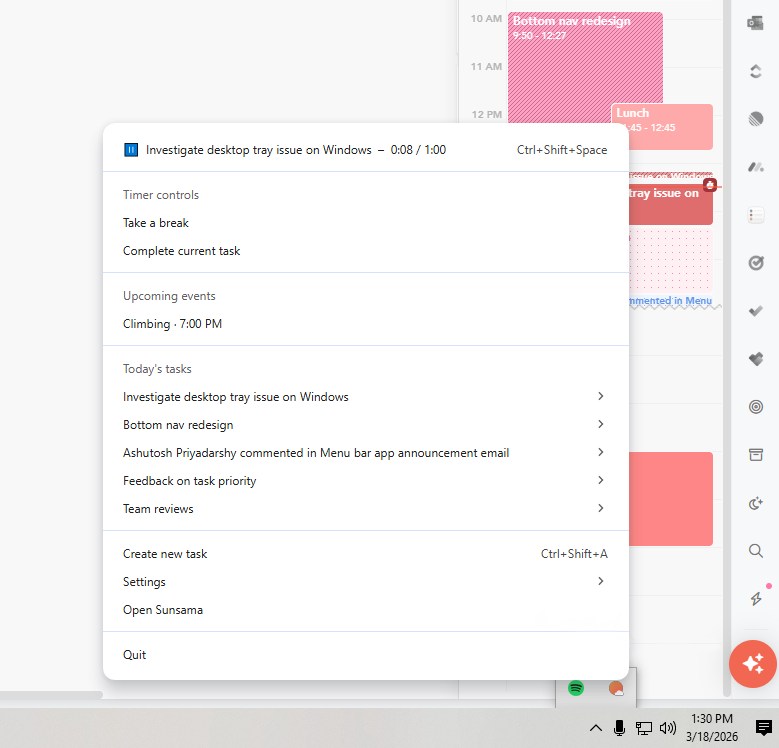
Settings:
On macOS, you can configure your menu bar settings in your Sunsama settings page to your preferences:
- Toggle the menu bar on or off
- Show timers with seconds, or just minutes
- Toggle showing the name of the task you're focused on in the menu bar
Updated about 6 hours ago