
Daily Highlights
Create an impressive summary of your day that you can preserve for your own records or share with your team.
Create an impressive summary of your day that you can preserve for your own records or share with your team.
Walkthrough
How to use
You begin in the daily shutdown flow. The first step displays the tasks you worked on that day with a time breakdown. Click “Next” to generate your daily highlights.
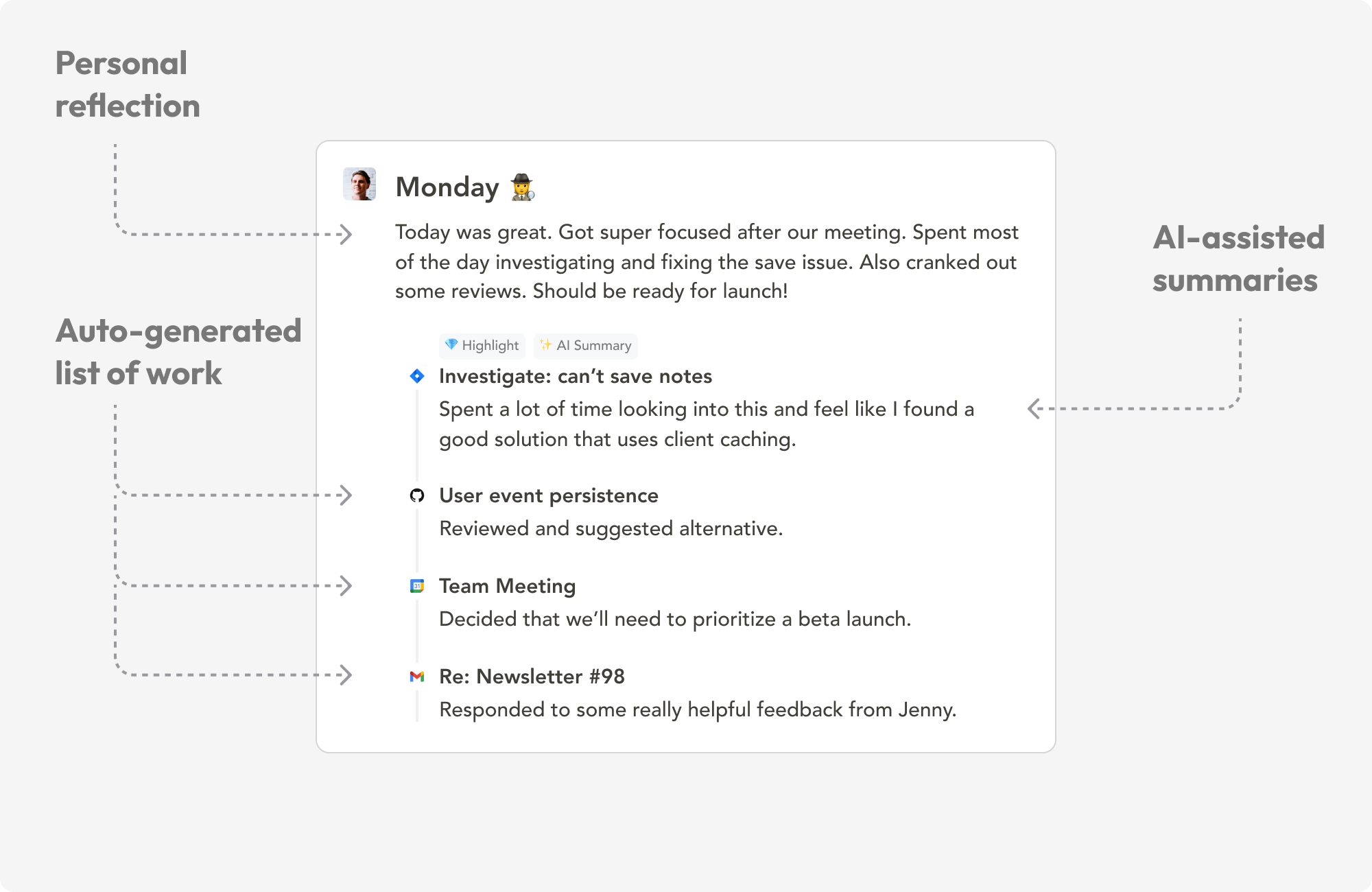
Highlights
This section lists and summarizes your noteworthy work from the day. Some highlights are auto-included via a ranking algorithm, and you can manually include more from “Other activities.”
Your highlights should remain focused, not exhaustive. Sunsama writes an AI summary for your highlights automatically, and you can edit or hide it.
The action bar on each highlight lets you:
- Remove the highlight
- Highlight (star) it for emphasis
- Hide/show the AI summary
- Resummarize the highlight
- Edit the title
You can drag and drop to reorder and nest highlights. The “Add a highlight” option creates a new Sunsama task.
Other activities
This section is visible only to you. It shows an exhaustive list of tasks, to-dos, items, and emails tracked via Sunsama. You can include items in your highlights by hovering over them and clicking “Include” or by dragging them into the highlights section.
Personal reflection
This is a manual section for reflecting on your workday, including what went well, concerns, and obstacles. You can select an emoji and optionally use custom prompt templates.
Publish
Clicking “Publish” saves your highlights in Sunsama and optionally shares them via your configured destinations.
Settings and navigation
- Date picker (top left) lets you view previous days’ highlights.
- The right panel shows a task overview with planned and actual times.
- A visibility toggle controls whether actual time is displayed.
- The top right buttons include Preview, Publish, and Settings.
- Settings let you configure destinations (email, Slack, Teams), prompts, and permissions.
Daily highlights journal
The daily highlights journal is accessible from the left panel and shows all your past highlights in a journal format. From here, you can edit, unpublish, or reshare highlights via email, markdown copy, or a direct link.