
Tasks + Calendar: Playlist Method
Visualize your tasks on your calendar without locking them in place. Just queue up your tasks and work through them one by one.
Introduction to task projections
In Sunsama, you can display task projections on your calendar that automatically visualize how your day will unfold based on task order and duration.
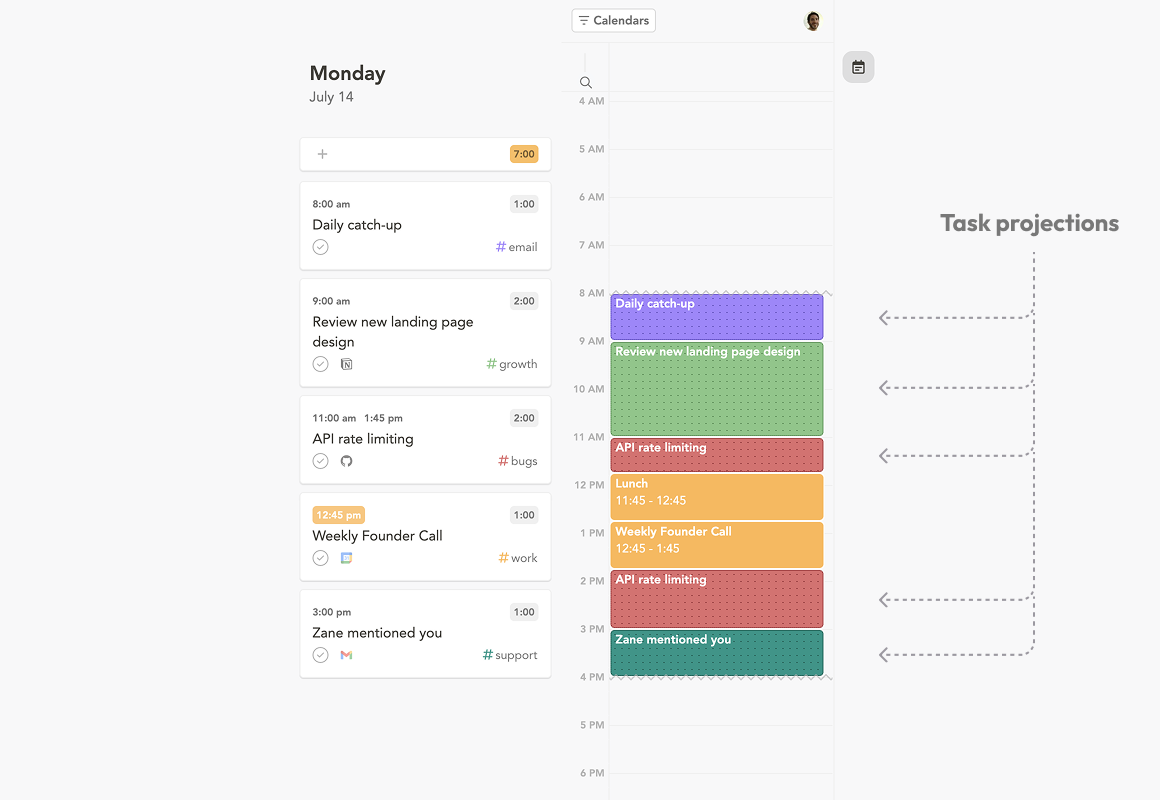
Task projections are determined by:
- The order of the task in your task list. A running timer comes first, and recurring tasks with a fixed “At roughly” time sit at that time.
- The remaining planned time for a task (example: 1 hour planned minus 20 minutes actual = 40 minutes projected)
- Events on your calendar that block time. Events on a calendar set to Non-blocking for tasks, declined events and all-day events don’t count. See Calendars for timeboxing.
- Your working hours for the day, from your schedule
- Parallel tasks: tasks marked Parallel that sit next to each other in your list share the same time on the calendar. See Planned and actual times.
Projections are on by default. To turn them off or change how they look, go to Settings > Account > Timeboxing and use Visualize projected time for tasks on calendar and Strongly differentiate task projections on calendar. You can also use the Task projections toggle in the Calendars menu above the calendar.
Introduction to the playlist method
Task projections form the foundation for the “playlist method.” This treats your task list as a daily playlist – order and duration determine how your calendar fills up. You can adjust task order and planned time without explicitly scheduling to a calendar.
Once you’re ready to work, start the task timer. Pausing the timer shifts projections back automatically. Adding new tasks or reordering tasks automatically updates the calendar projections. Tasks requiring specific times can be pinned to lock them in place: hover a projection and click Pin to calendar.
Who should use the playlist method?
- Most of your tasks are flexible (timing doesn’t matter during the day)
- You’re at your computer most of the time and can track starting/stopping your task timer
Who should use the timebox method?
- You prefer well-defined start and end times for each task
- You need to block time on Google/Microsoft/Apple calendar so others can’t book you
- You prefer not to run a timer or can’t