
Weekly Objectives
Define your priorities and main goals for the week with objectives that can span multiple days and involve several tasks.
Objectives have a similar look and feel to tasks, but serve a slightly different purpose. Your objectives should define your priorities or main goals for the week. Use objectives for longer tasks that may span multiple days and/or involve several distinct tasks.
Walkthrough
How to use
Accessing your weekly objectives
To open the weekly objectives panel from your main workspace, click the purple bullseye or “target” icon in the right hand panel.
Creating weekly objectives
To create a weekly objective from the Objectives panel, click “Add an objective”. Then type a name for your objective and hit enter.
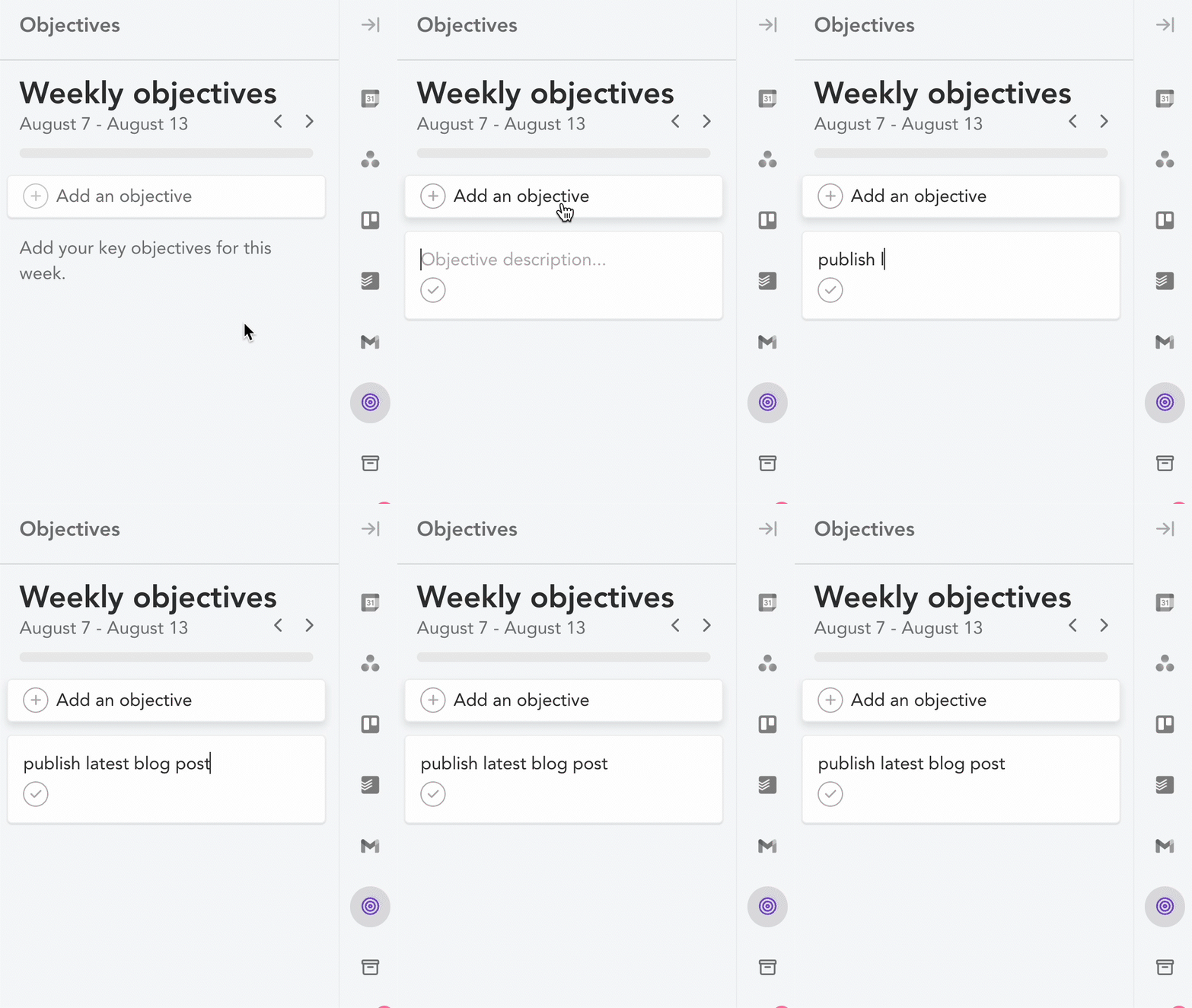
How to align a task with a weekly objective
There are two ways to align an existing Sunsama task with one of your objectives:
- Highlight, hover over, or click on a task and type the keyboard shortcut
R - Or, click into a task and click the three dot “other actions” button and click “Align with objective”
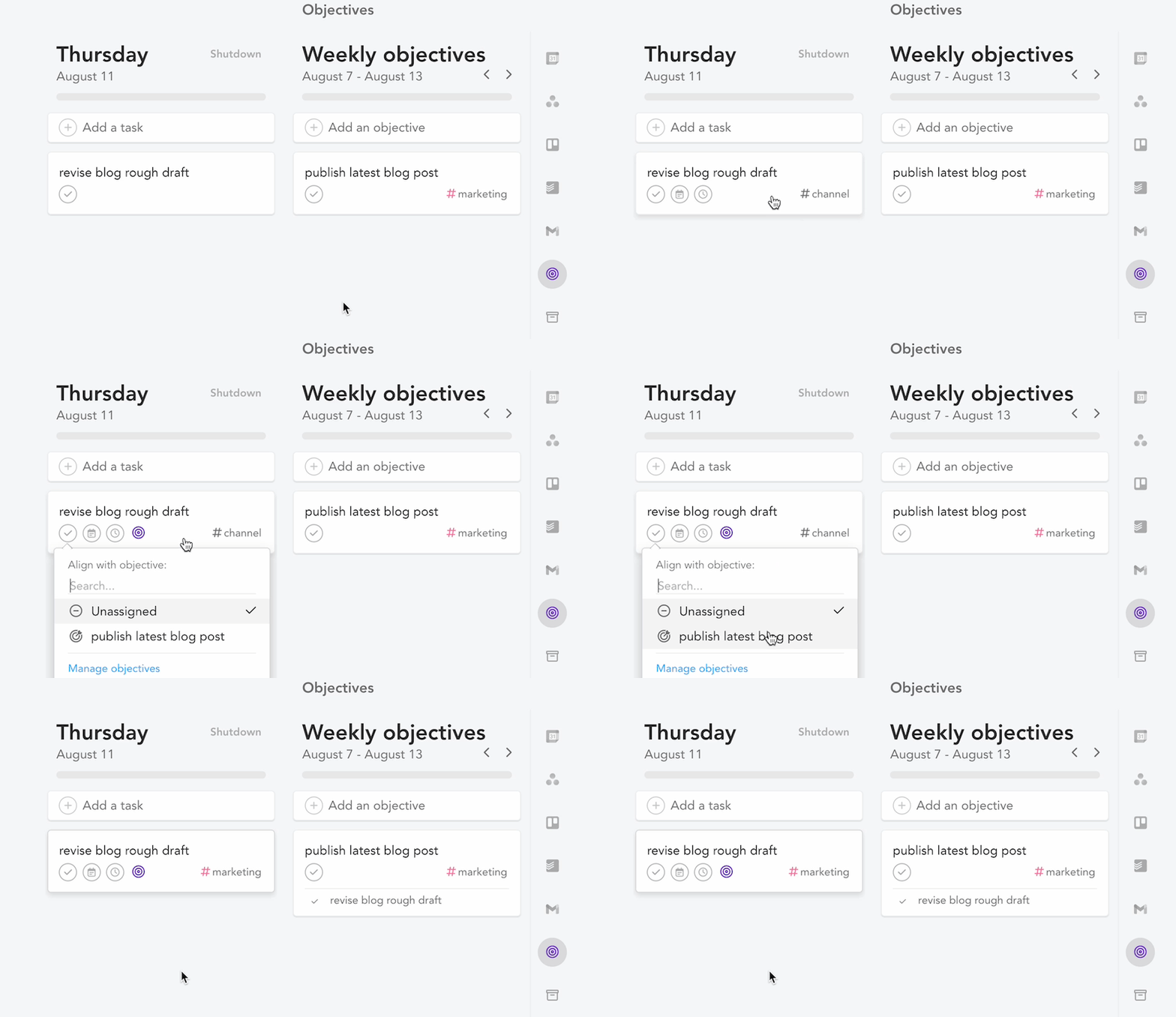
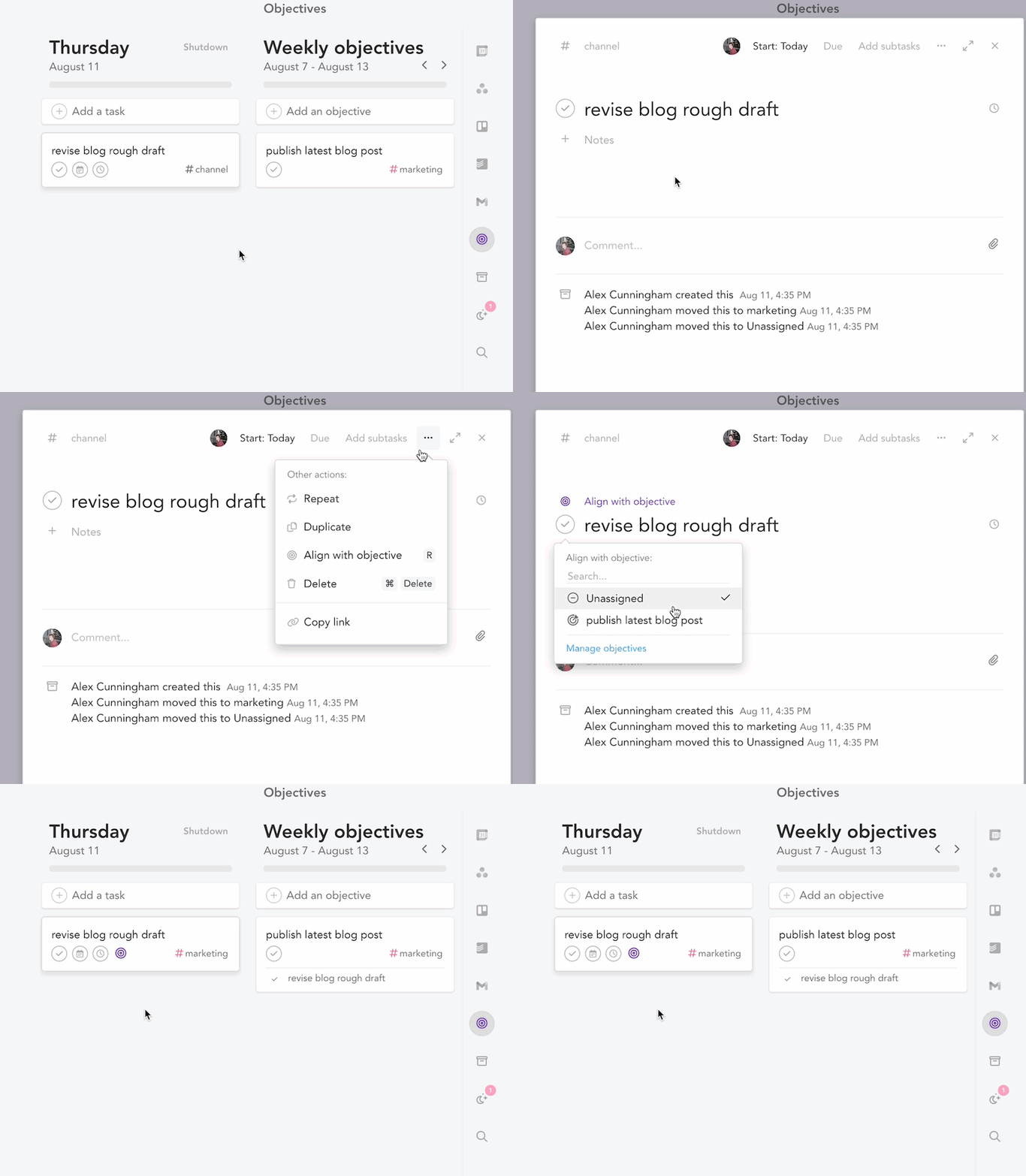
You will then be able to select which of your objectives you wish to align the task with. Once you align a task to an objective, the task will have a purple target on it to visually indicate that it is aligned with an objective.
How to turn an existing task into an objective
Follow the same process as you would when aligning a task to an existing objective. In the drop down menu, you can create an objective from a task by clicking “Turn this into an objective”.

How to create tasks from a weekly objective
You can also create tasks directly from a weekly objective, which will automatically be aligned with that objective. There are two ways to create a task from a weekly objective:
- Simply drag the objective into a daily column
- Or, click on your objective and then click on a day of the week and add planned time
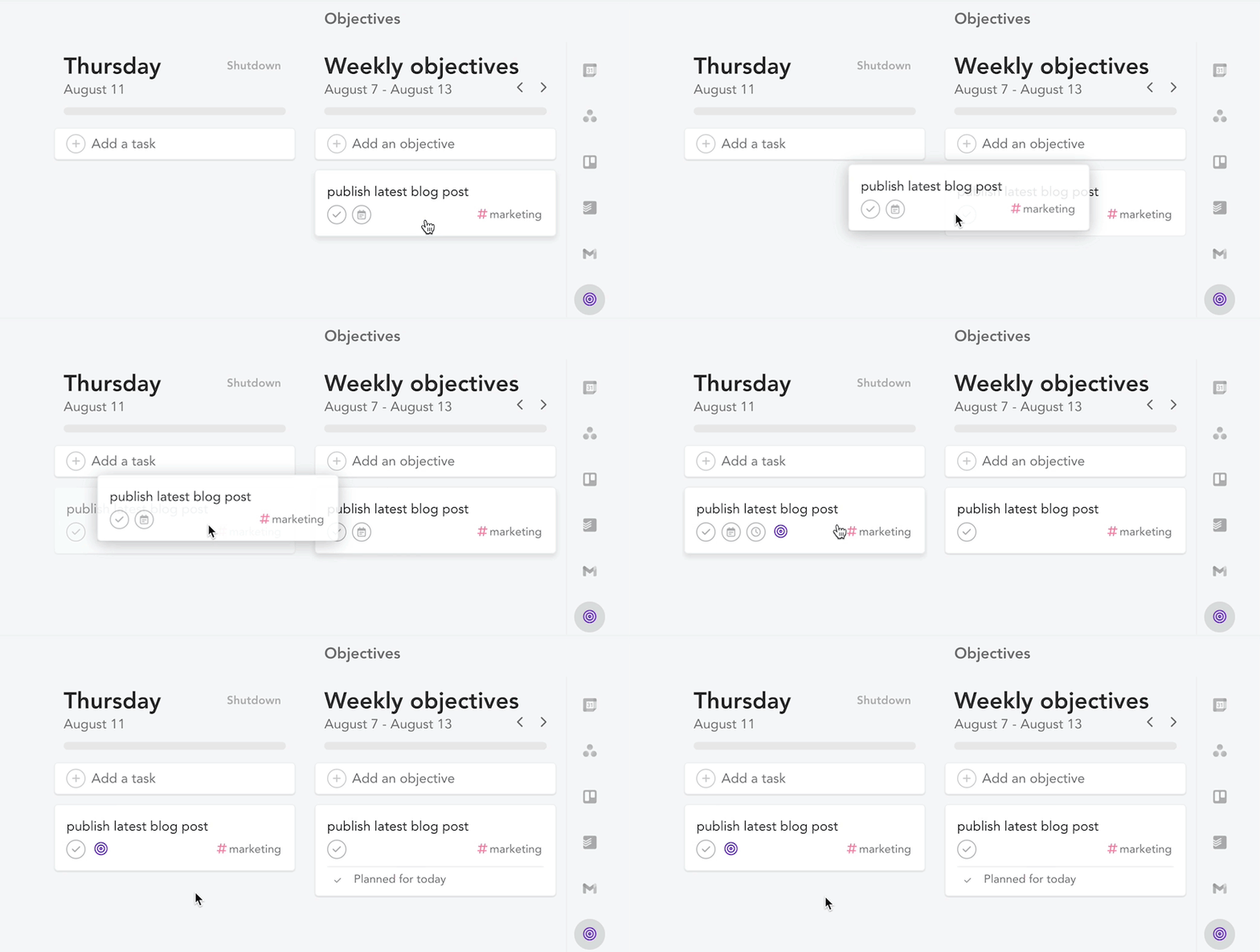
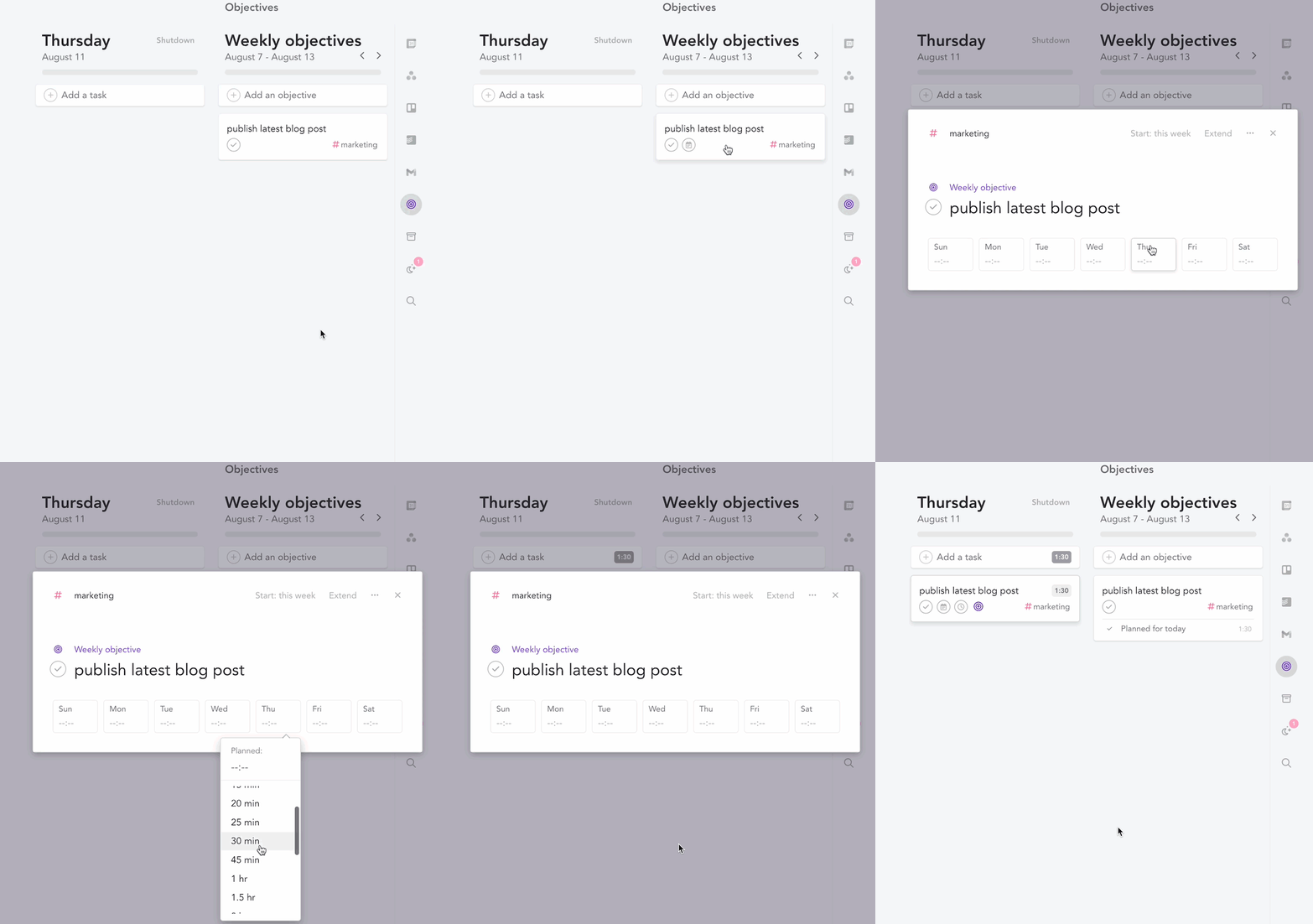
This will create a task with the same name as the objective on the day of your choice.
How to extend an objective to the next week
If you would like to extend an objective to the next week because you were not able to complete it this week, you can do that by:
- Clicking the objective
- Click the “Extend” button and choose “Extend one week”
That will extend the objective into next week’s list of Weekly Objectives. It will also still remain in the current week.
How channels work with objectives
You can assign your objective to a channel. When you align a task to an objective, the task will inherit the objective’s channel if the task was not already assigned to a channel. When a task already assigned to a channel is then aligned with an objective, it will preserve its original channel instead of inheriting the channel of the objective. If you change the objective’s channel, all aligned tasks will update to align with that new channel. You can change the task’s channel to a different channel than the objective. If you create a task directly from the objective, it will automatically have the objective’s channel.
Best practices
- At the start of the week, spend a few minutes deciding what your priorities are for the week ahead with the Weekly Planning ritual.
- During your daily planning, review your objectives. If you see one you want to work on, you can create a task from it.
- It is best to not have too many objectives. This is not the place for a large list of your goals overall, nor are these meant to be individual tasks.
- Objectives are a great way to group related tasks. For example, if you plan to write a rough draft on Tuesday, revise the draft on Wednesday, and publish the article on Friday, you could align all of those tasks to a “Publish article” objective.
- The purple bullseyes on your task cards show which tasks are your most important ones that link back to your objectives.
Troubleshooting
- The objectives that are displayed correlate with the day currently in view in the main Kanban. If you navigate to a day in a different week, you will view the objectives from that week.
- The list of objective-aligned tasks in the right hand Objectives panel is limited to 10. If you have more than 10 aligned tasks to an objective that week, just click to open the objective and view all aligned tasks.