
Timeboxing FAQs and Pro Tips
Common questions and tips to get the most out of timeboxing in Sunsama.
I do want my tasks showing on my Google/Outlook/iCloud calendar
Navigate to your calendar settings, select your preferred calendar, and designate it as “Default for tasks”. Be mindful of linked channels as well, since channel-specific calendar settings override the default.
See Choosing your calendar for more details.
I don’t want tasks showing on my Google/Outlook/iCloud calendar
Access your calendar settings, select the “Sunsama calendar” at the top, and set it as the default for tasks. Working sessions will then remain within Sunsama and will not appear on your external calendars.
Zooming into your calendar
From the main dashboard, click the + sign in the top left corner of the calendar view to zoom in. This provides more workspace for timeboxed tasks.
On mobile, pinch and squeeze the calendar view to zoom in and out.
How do I split a task into multiple blocks, or schedule a task across multiple days?
After timeboxing a task once, click the colored timestamp to open the calendar popout. Use the working sessions feature to add multiple blocks across different days.
See Working session popout for more details.
Sorting the task list
Sunsama automatically sorts tasks chronologically when importing from the calendar or timeboxing. Manual adjustments are always possible.
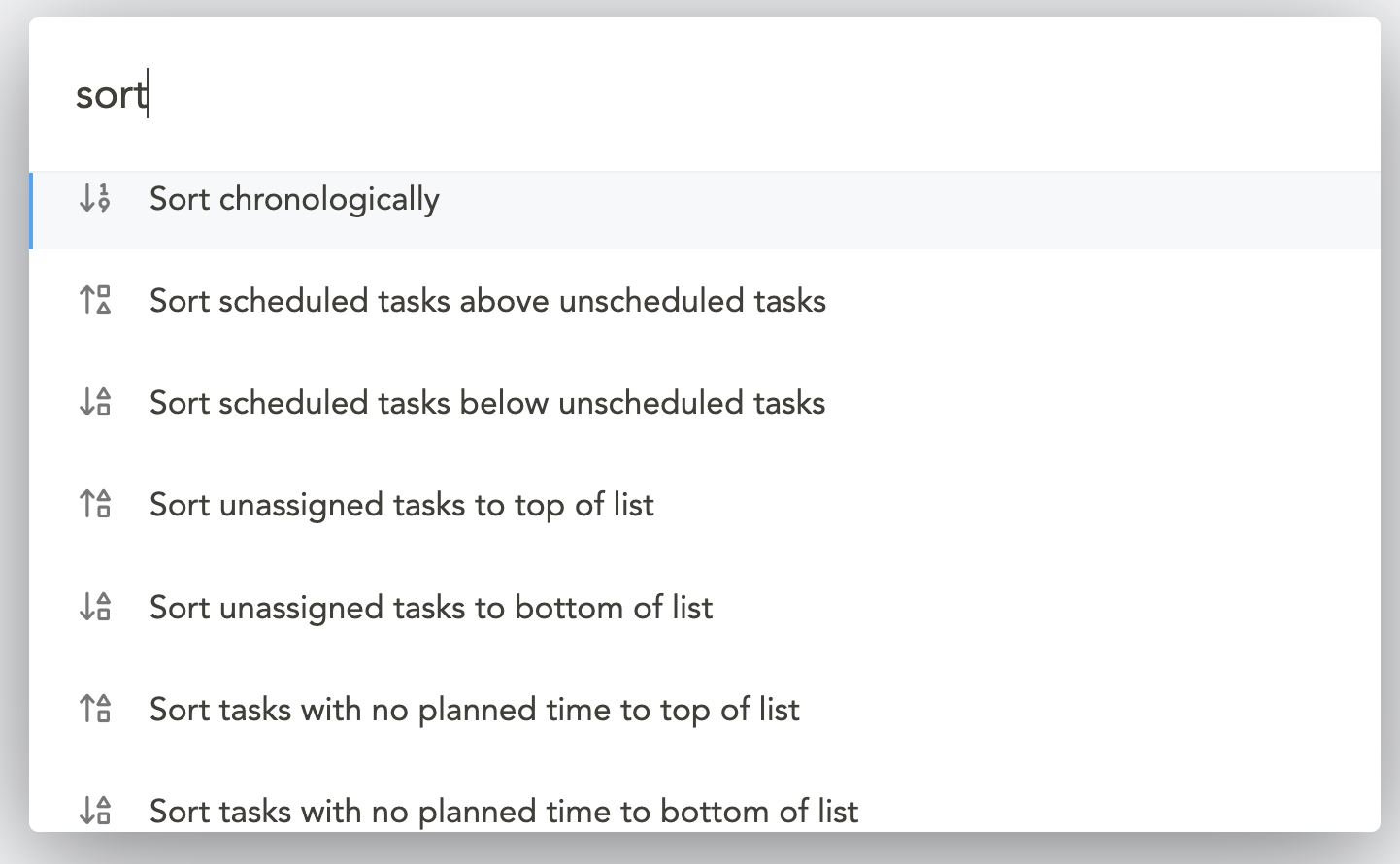
Use the command palette (Cmd + K on Mac, Ctrl + K on Windows) and type “sort” for these options:
- Sort chronologically: Orders tasks by time, moving unscheduled tasks per your preferences.
- Sort scheduled tasks above/below unscheduled tasks: Helps identify tasks that still need calendar scheduling.
- Sort unassigned tasks to top/bottom of list: Locates tasks without channel assignments.
- Sort tasks with no planned time to top/bottom of list: Finds tasks that are missing time estimates.
Should I create a recurring task or repeating calendar event?
Use repeating calendar events for fixed-time recurring items (like meetings). Import these as tasks for workload tracking. For flexible-schedule work, use recurring tasks in Sunsama instead.
Completing a task before its scheduled end time
When you mark a timeboxed task complete before its scheduled end time, Sunsama updates the calendar event accordingly:
- Task scheduled 1pm-2pm, completed at 12pm: Future working sessions are deleted.
- Task scheduled 1pm-2pm, completed at 1:30pm: The event updates to 1pm-1:30pm.
- This applies only to tasks scheduled via Sunsama (working sessions), not imported calendar events.
What happens if I move a task to another day if it has already been timeboxed?
- Future working session, move to a future day: The working session is removed.
- Past working session, move to a future day: The session and breadcrumb remain on the current day.
- Move to a past day: All future sessions are removed and the task auto-completes.
- Future day task to another day: The working session is removed.
How do I turn off reminders/notifications for my Sunsama tasks?
Find “Calendar reminders for timeboxed tasks” in your Timeboxing settings. See Customizing your settings for details.
Calendar event color of working sessions
In your account settings, choose how working session events are colored:
- Color by channel: The event displays in the associated channel or context color. If no channel is assigned, it uses the calendar color.
- Color by calendar: The event displays in the calendar color regardless of channel assignment.