
Backlog
Store tasks you want to do someday but aren't sure exactly when.
Store tasks you want to do someday but are not sure exactly when. Think of it as your “someday” list.
Accessing the backlog
On web and desktop, click the backlog icon in the left panel to open the full backlog view. On mobile, tap the backlog tab in the bottom navigation bar.
You can also open the backlog with:
- Keyboard shortcut
Shift Bto toggle the backlog in the right panel - The command palette
Time buckets
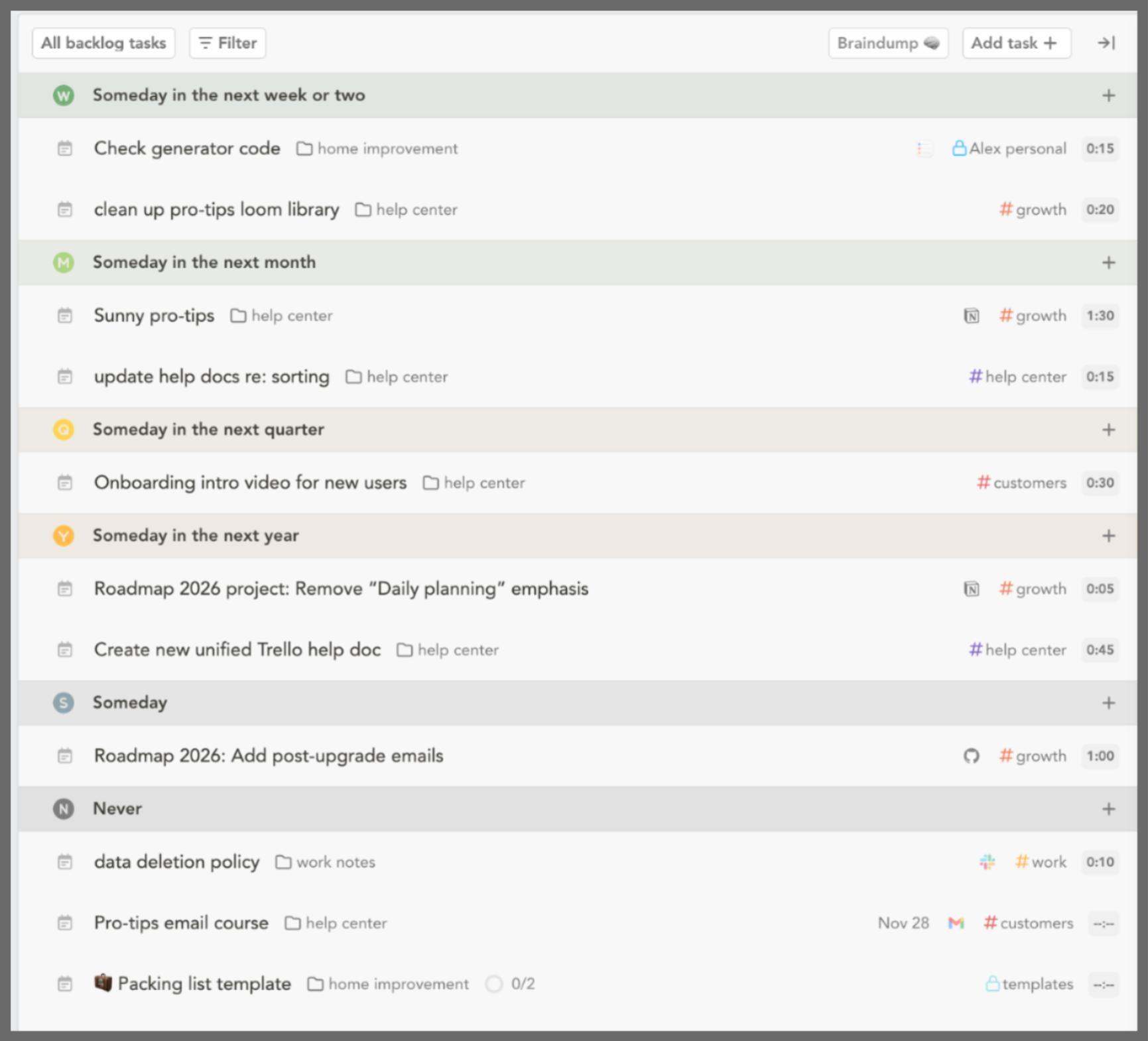
Every backlog task belongs to a time bucket — a rough sense of when you might want to work on it:
- Next week or two
- Next month
- Next quarter
- Next year
- Someday (default)
- Never
Time buckets let you differentiate which tasks are worth prioritizing sooner without committing to a specific date.
Folders
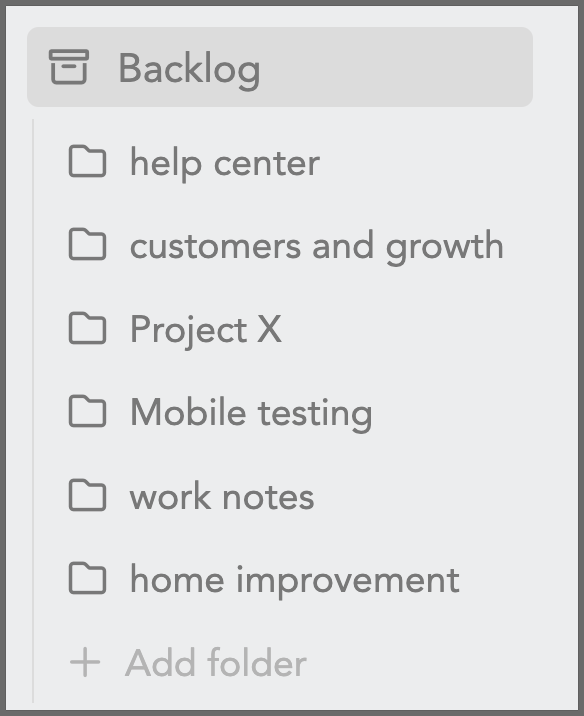
Create folders to group backlog tasks by project, life area, or any category that works for you. Create and manage folders from the top of the backlog view.
Braindump
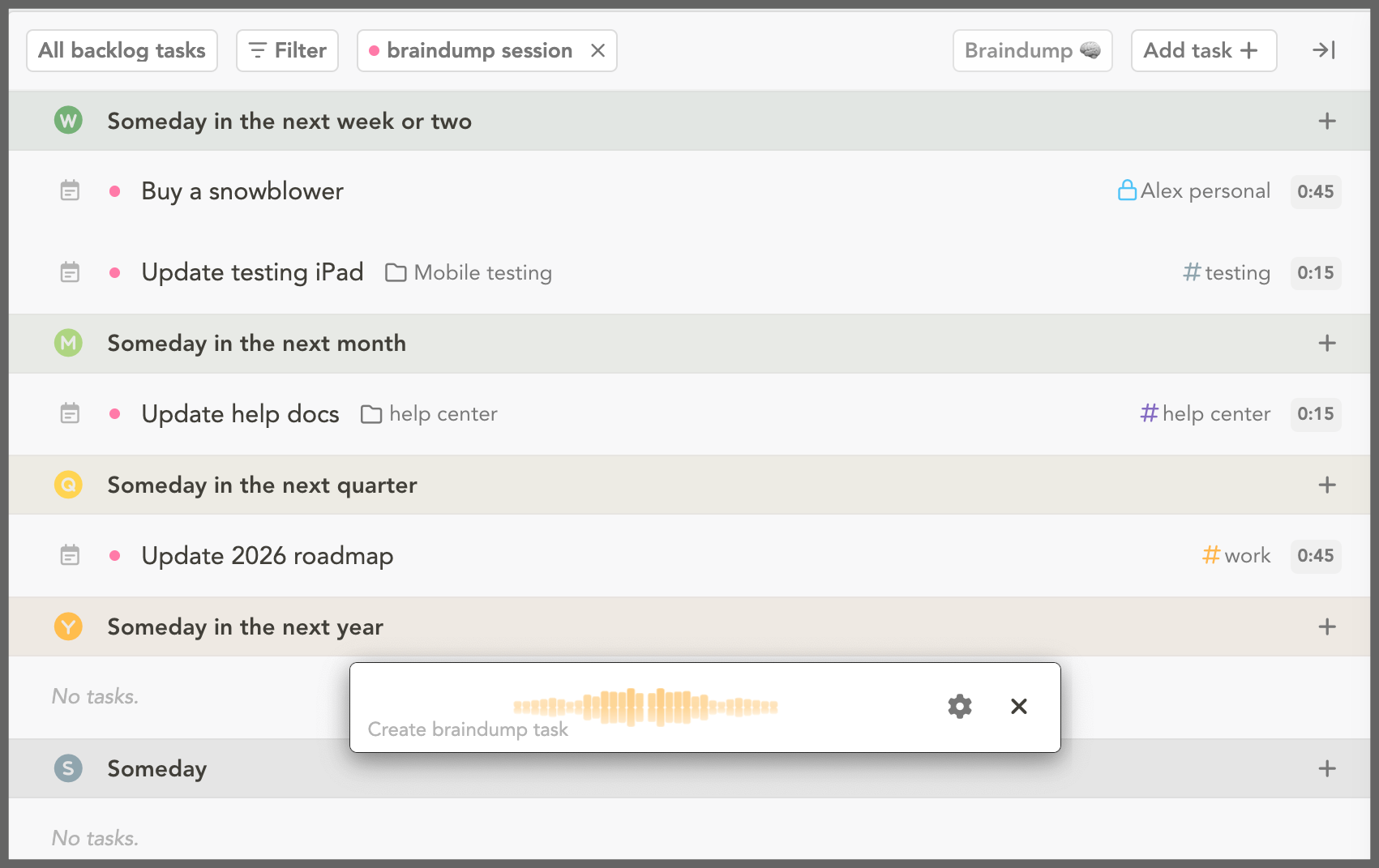
Click the Braindump button in the top-right corner of the backlog to start a voice session with Sunny. Just talk through whatever is on your mind — things you want to do someday, ideas, obligations — and Sunny will turn your ramblings into tasks, automatically setting a channel, folder, and time bucket for each one.
Moving tasks into and out of the backlog
Move a task into the backlog by:
- Dragging and dropping a task into the backlog
- Hovering over a task and pressing
Z - Typing
@backlogin the add task modal - Clicking the calendar icon on a task and choosing a time bucket from the backlog section of the date picker — you can also assign a folder from here
- Clicking the “Add a task” button at the top of the backlog
Move tasks out of the backlog by dragging them to a daily column, or by clicking the calendar icon on the task and picking a specific day.
Filtering and searching
Use the filters at the top of the backlog to narrow tasks by channel or context, priority, or folder. Click the search icon to find a task by name.
Best practices
- Move frequently rolling-over tasks to the backlog to keep your daily task list focused.
- The backlog is not a replacement for a project management tool.
- Create a weekly “Review Backlog” recurring task to prevent items from being forgotten.
- Use time buckets to stay intentional about what you plan to tackle soon versus what’s truly “someday.”
- Use folders to group tasks across different projects or life areas so the backlog stays easy to scan.