
Setting Up Your Sunsama Account
What to expect when you first sign up for Sunsama.
Visit sunsama.com and click Sign Up to start your 14-day free trial. You can log in with Google, Outlook, or enter your email and password.
Starting your trial
After logging in, you’re directed through a one-time onboarding and planning flow.
Guided onboarding flow
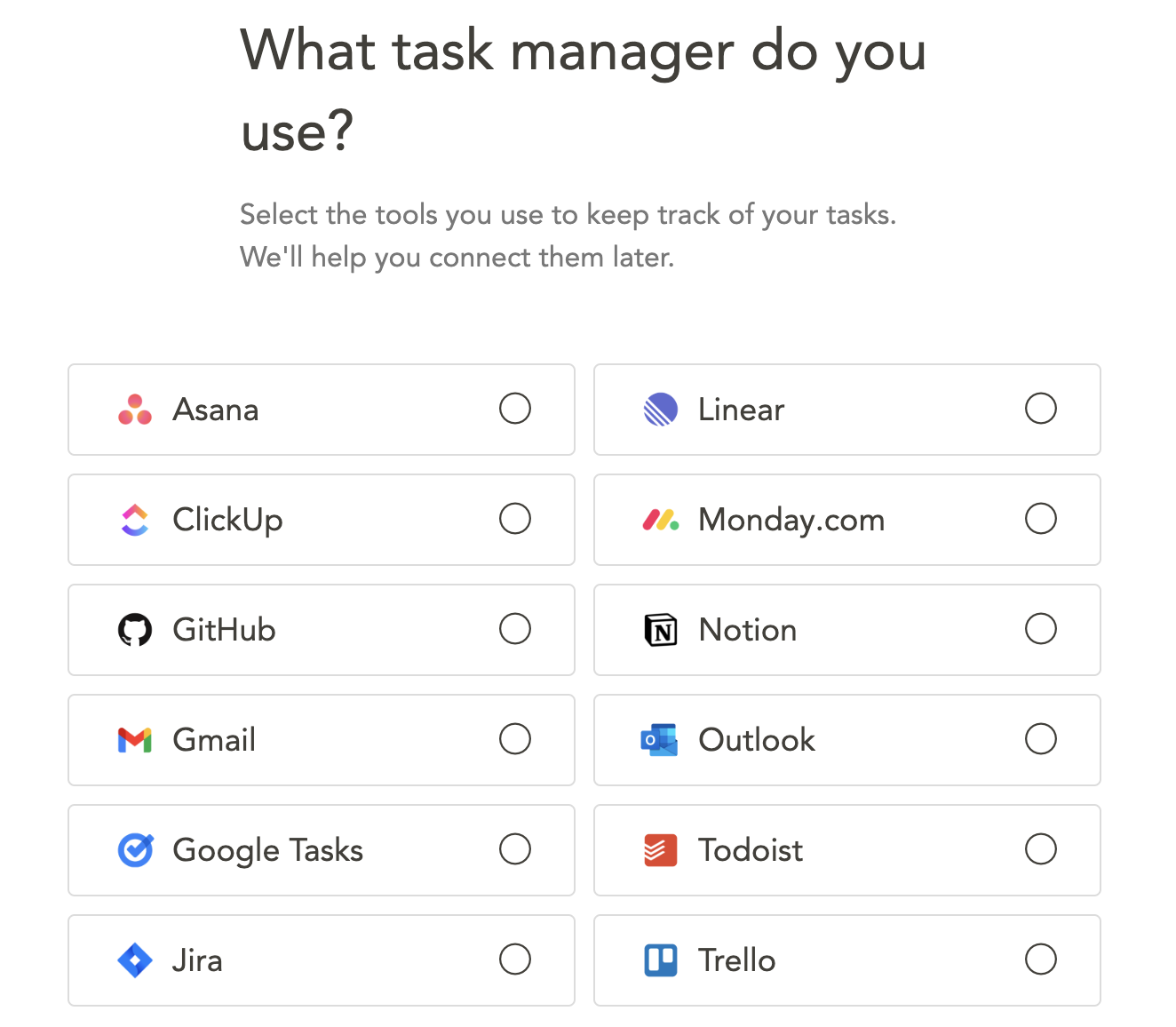
Pick your task management tools
Let Sunsama know what other task management tools you use day-to-day. You’ll connect these accounts later during your first planning session.
Connect your calendars
Link your external calendar accounts — Google, Outlook, and/or iCloud — to see and import meetings and events. You can also timebox tasks to those calendars.
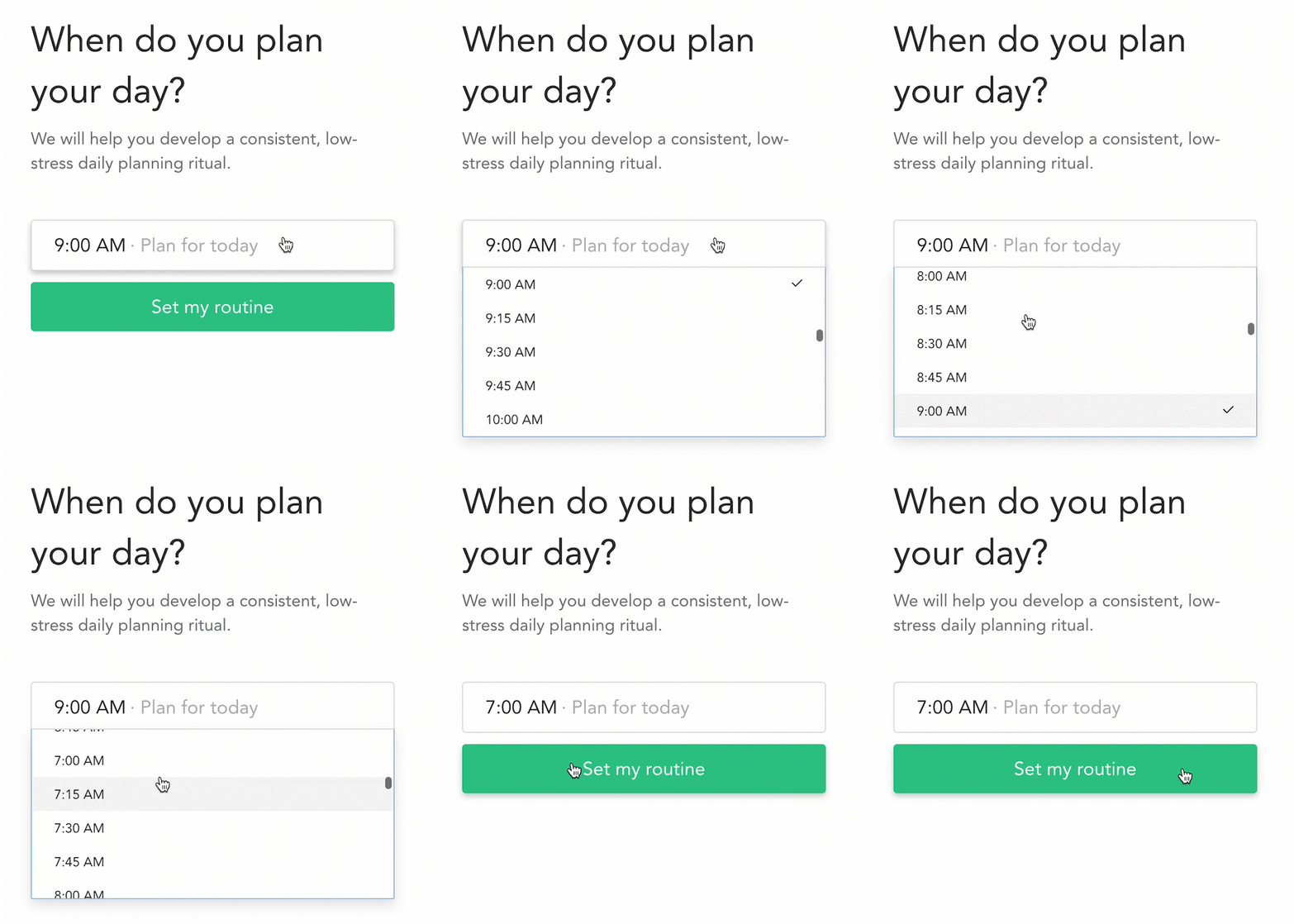
When do you plan your day?
Pick the time you want Sunsama to remind you to plan each day. At that time, you’ll receive a daily email reminder (during your trial) and the app transitions to guided planning.
What time should you select?
- Morning planners — Choose a time before 3 PM, ideally before you sit down at your computer.
- Evening planners — Choose a time after 3 PM, ideally when you’re wrapping up work. Planning tomorrow should be your final task.
Guided daily planning flow
Next, you’ll go through Sunsama’s guided daily planning process. This first-time flow is slightly different from the normal daily planning — it’s customized to help you learn Sunsama and understand the core daily planning principles.

Walkthrough video
Watch the video below for a full walkthrough of the account setup process.
Plan today or tomorrow
Select whether to build your task list for today or tomorrow. Choose Plan Tomorrow if it’s afternoon or near end of day.
Add tasks for today
Click Add task and type in the tasks you want to work on. You can create multiple tasks at this stage, then click Next to advance.
Set time estimates
Add planned times to each task — estimate how long each will take. As you add estimates, you’ll see the total planned time accumulate. Sunsama warns you if you’re planning too much work relative to your workload threshold.
Fill in tasks from other tools
Connect your calendar to import meetings and events. You can also import to-dos from integrated tools by clicking the
+button in the right panel to reveal available integrations. Drag items from your connected tools into today’s column.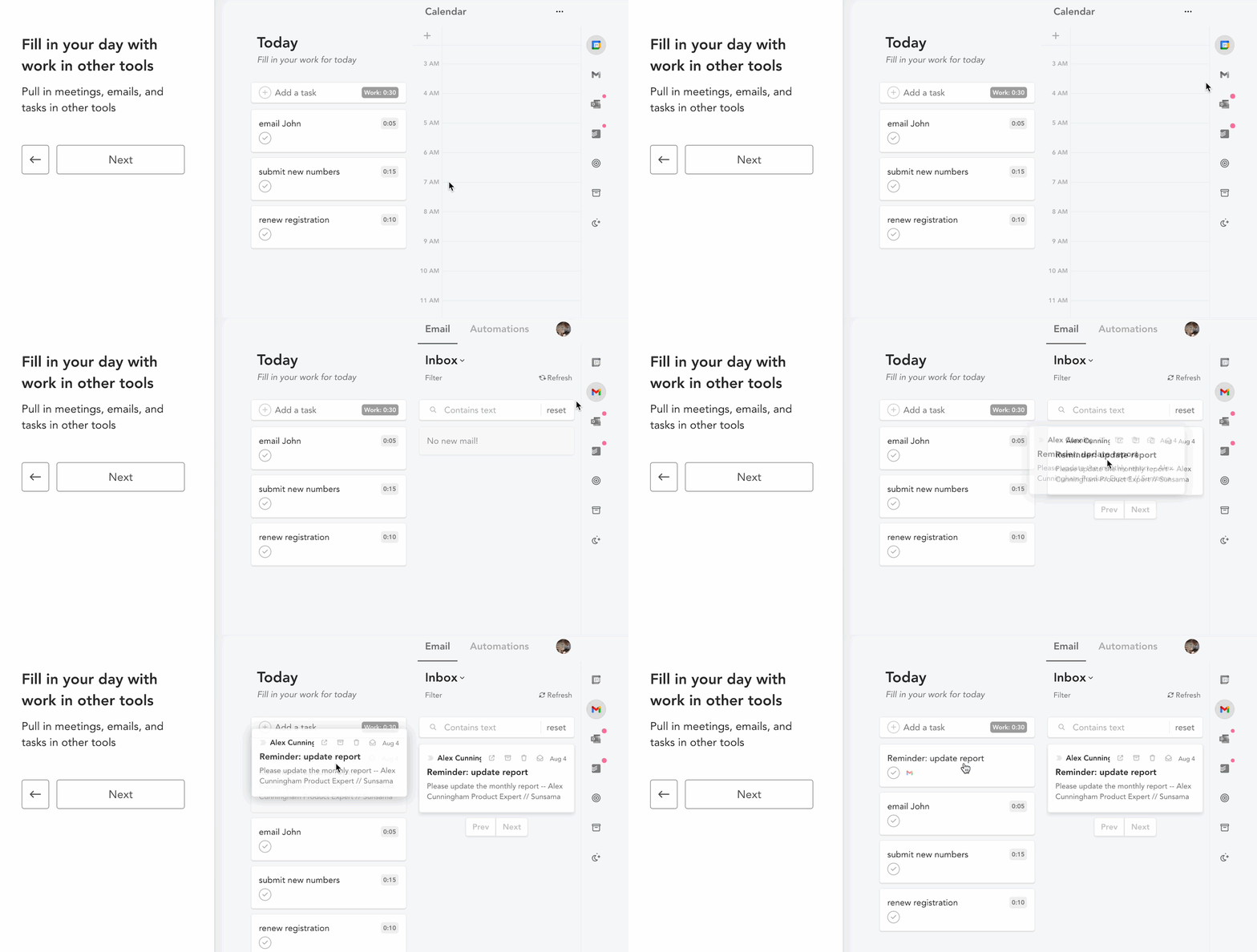
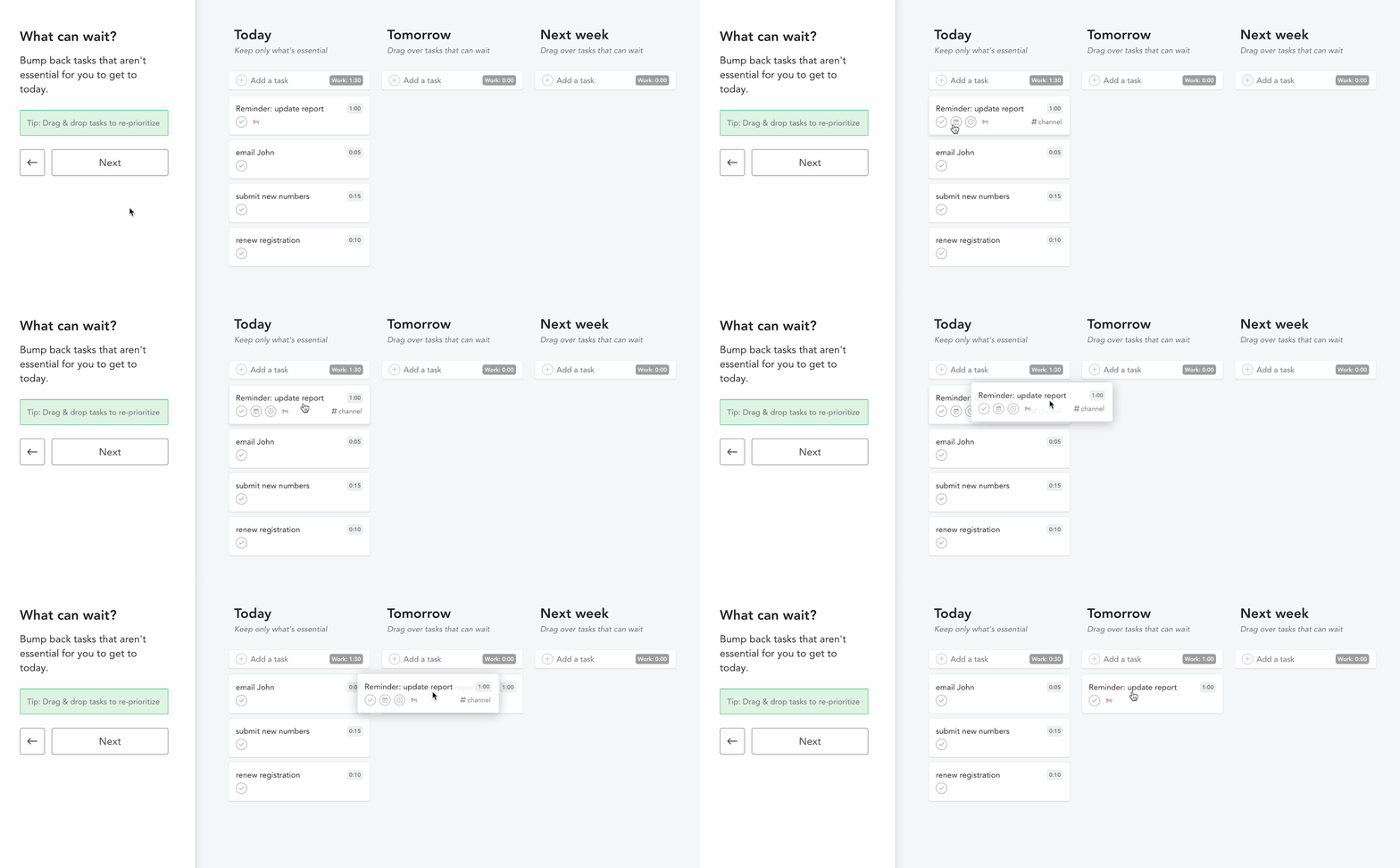
Push back non-essential tasks
Bump tasks you won’t complete today by dragging them to the Tomorrow or Next Week columns. To move a task to a day not shown, click the calendar icon on the task card and select any day.
Finalize your plan
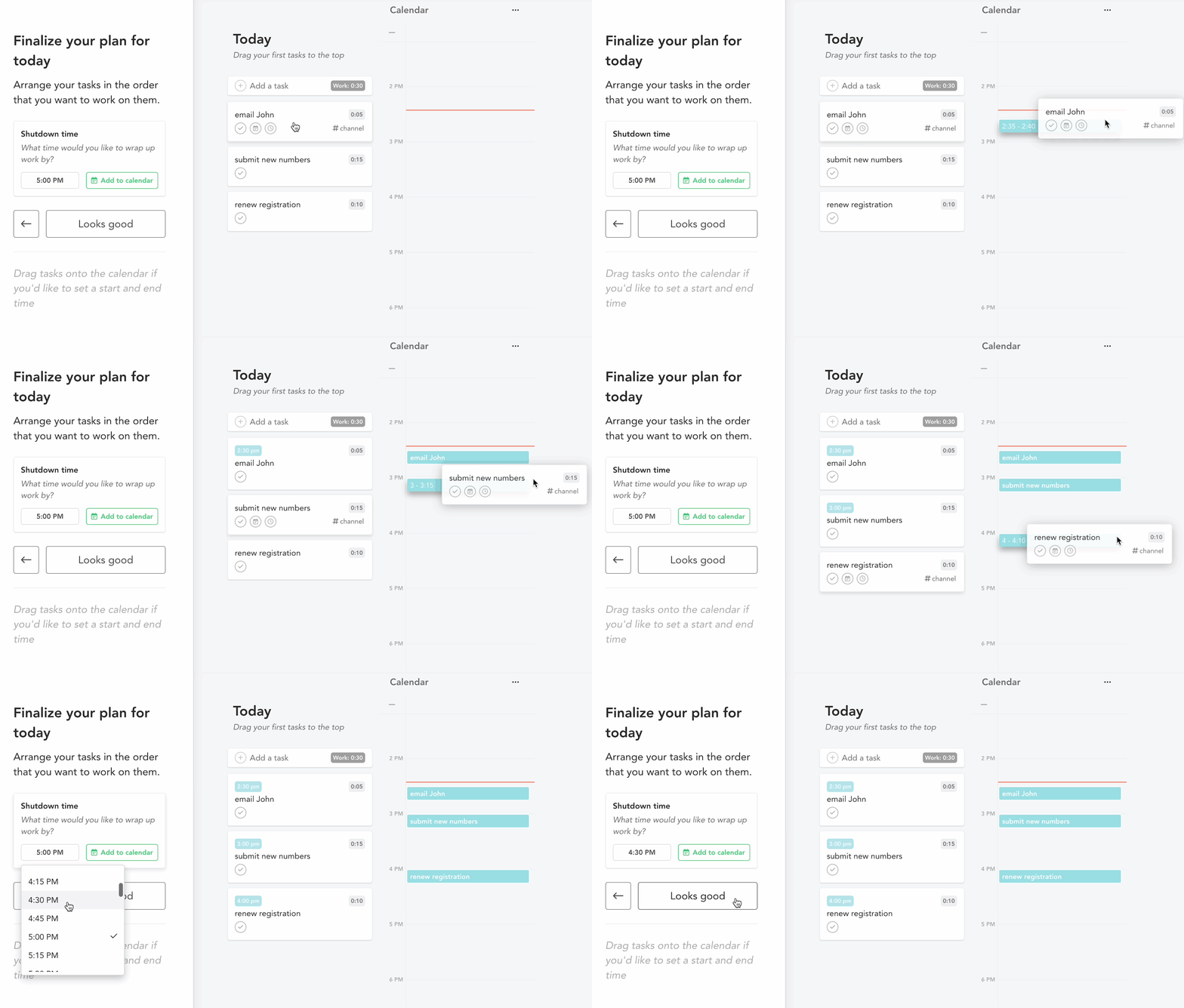
Reorder your task list in your preferred work sequence. For better visibility of when you’ll work on things relative to meetings, timebox tasks by dragging them onto the calendar, or hover over a task and press
Xto auto-schedule.After ordering your tasks, set your Shutdown time — when Sunsama will prompt you to wrap up for the day. Click Looks good to advance.
Share your plan and get started
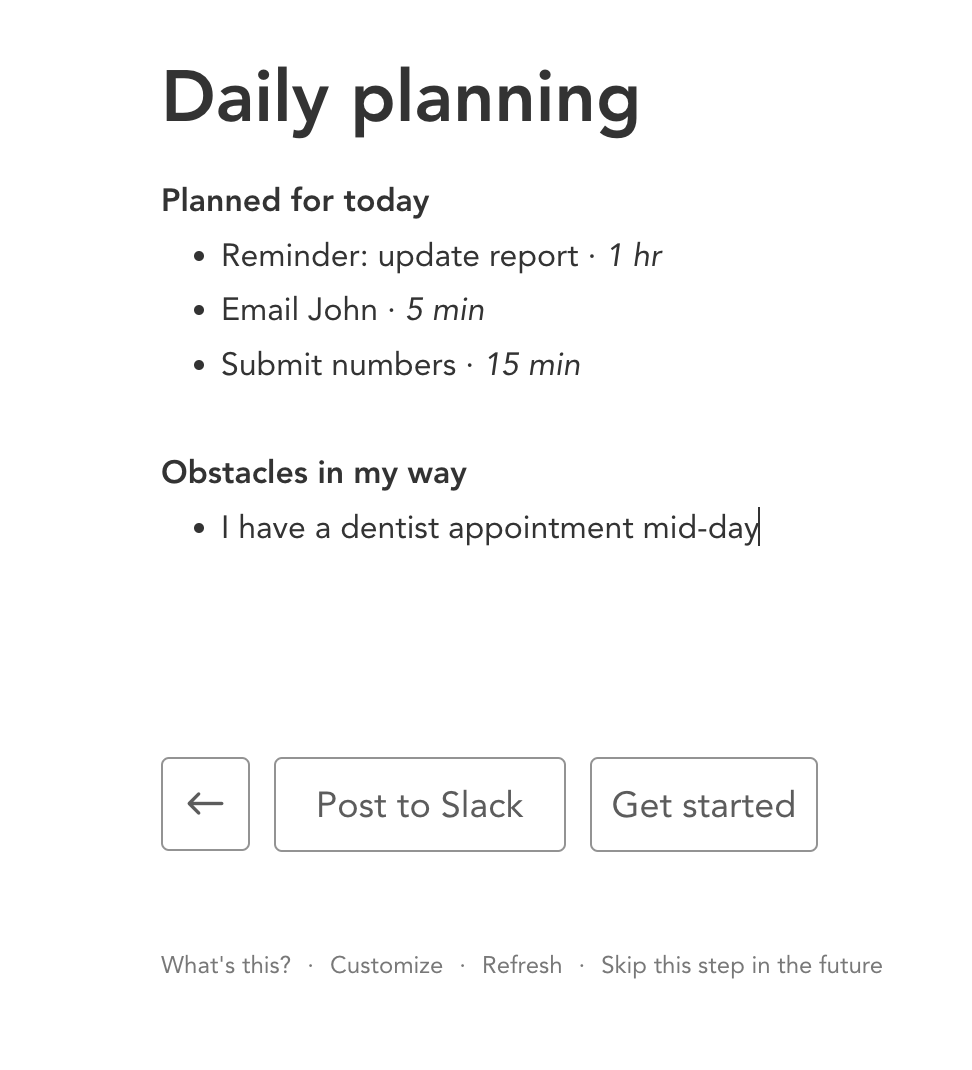
In the final step, review your day’s task list and jot down any anticipated obstacles. Optionally share your plan to a connected Slack or Microsoft Teams channel. Click Get Started to complete the planning flow.
Workspace view
Once you complete the guided planning flow, you’ll arrive at Sunsama’s main workspace — your Daily Kanban. From here you can freely manage tasks, explore settings, and finish setting up your integrations.
You’ll go through the guided daily planning flow at your next scheduled planning time for the next two days.
Onboarding resources
Once you begin using Sunsama, you’ll receive brief daily emails with advice and reminders during your trial. If you have questions, reach out via the support chat bubble in the bottom right corner of the app — we respond within one business day.