
Account Settings
Configure the display and functionality of your workspace to your personal preferences.
Accessing Settings
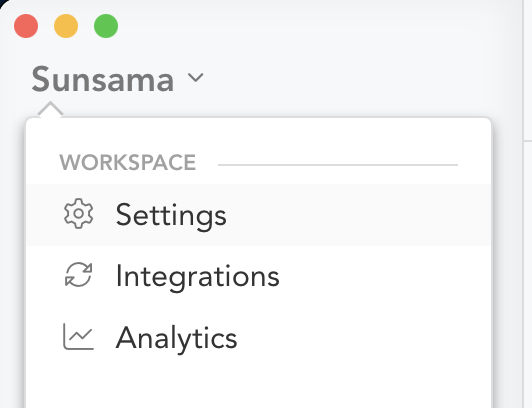
There are three ways to access your account settings:
- Go directly to https://app.sunsama.com/settings
- Use the Command Palette (
CMD K) and search for settings - Use the main dropdown in the app (in the top left corner)
General
Time zone
Sets the timezone across all your devices.
Time zone alert
Display a notification when your timezone changes. We recommend keeping this enabled.
Time format
Choose how times are displayed: match your device region, 24-hour, or 12-hour AM/PM. Requires a page refresh to take effect.
Start of week
Configure your calendar layouts to begin on Sunday or Monday.
Count planned time as actual time
When enabled, your planned time will be used as actual time when no actual time has been recorded.
Auto-sort tasks
When enabled, Sunsama automatically positions tasks in your daily list based on priority, scheduled times, and your manual pins. See Auto-sort for details.
New task position
Controls where new tasks land in the day’s list. If auto-sort is enabled, affects whether new tasks go above or below similar tasks.
Task rollover position
Determine whether incomplete tasks move to the top or bottom of the next day’s list.
- Bottom: Best for unimportant stragglers
- Top: Best for important incomplete tasks
This also affects chronological sorting of unscheduled tasks.
Priority rollover
Selects which daily priority levels persist across days instead of resetting each day. If no priority levels are selected, all task priorities reset when a task rolls over.
Workload threshold
Set your daily workload capacity in hours. You will see color-coded warnings when you are overcommitted.
You can also set a Custom by day threshold for per-day workload limits.
Display
Calendar event color
Two options:
- Color by channel: Show events in their channel/context color or calendar color
- Color by calendar: Always use the associated calendar color
Hide completed tasks in task list
Toggle to remove completed tasks from today’s view.
You can reveal hidden completed tasks by clicking the “N tasks completed” text.
Hide completed tasks in calendar
Toggle the green checkboxes that show task completion times on the calendar.
Support chat bubble
Toggle the Intercom support bubble in the bottom right corner. You can always reach support at support@sunsama.com.
Dark mode
Enable dark mode. The “System” option matches your OS/browser setting.
Enabled celebration animations
Enable animations for certain completed actions.
Celebration type
Choose the animation type for celebrations.
Disable spellcheck
Turn off red squiggly underlines in task notes and editors. Useful if you write in a language that differs from your OS locale.
Rituals
When do you plan your day
Select the time your automatic daily planning prompt appears.
- If set after 3 PM, it plans the next day
- If set before 3 PM, it plans the current day
- This also determines when you receive reminders
You can manually trigger daily planning with the P keyboard shortcut if automated planning is disabled.
Automated daily planning
Toggle whether the daily planning ritual displays automatically at your scheduled time.
Automatically rollover tasks during evening planning
- On: Automatically rolls over incomplete tasks to tomorrow
- Off: Shows a prompt letting you select which tasks to roll over
When do you end your day
Set your suggested shutdown time. This can be changed during daily planning.
Automated daily shutdown
Toggle whether the daily shutdown ritual displays automatically.
You can also access daily shutdown via the O shortcut or the left panel.
End of day message
Three options:
- Daily encouragement: Rotating motivational quotes
- No message: No message displayed
- Custom message: Enter your own static text
When do you plan your week
Select the day and time your weekly planning prompt appears.
Automated Weekly Planning
Toggle whether the weekly planning prompt appears automatically at your scheduled time.
Combine weekly review and weekly planning
Merge the review and planning flows into one combined ritual. When enabled, the separate weekly review settings are disabled.
When do you review your week
Select the day and time your weekly review prompt appears.
Automated weekly review
Toggle whether the weekly review prompt appears automatically.
Include weekends during reviews
Determines whether weekends are included in the data shown during daily and weekly reflections.
Default channel for rituals tasks
Set the channel used for Daily Planning, Daily Shutdown, Weekly Planning, and Weekly Review tasks.
When do you want to receive the draft of your daily highlights?
Select the days and times you want to receive your daily highlights email draft. Disable by unselecting all days.
Timeboxing
Pick which calendars tasks are scheduled to
Click the “Calendar Settings” button to configure which calendar working sessions are created on.
Calendar reminders for timeboxed tasks
Override the underlying calendar’s reminder settings for Sunsama tasks.
Calendar availability for timeboxed tasks
- Show as busy: Indicates you are unavailable to people who can see your calendar
- Show as available: Displays the task on your calendar without blocking your availability
Calendar privacy of timeboxed tasks
Three options:
- Calendar default: Honor the calendar’s default privacy setting
- Private: Hide task details from colleagues with calendar access
- Public: Show tasks to colleagues
Auto-scheduling gap
Set breathing room between calendar items and auto-scheduled tasks.
Default duration when scheduling tasks
Set the default duration for timeboxed events when no planned time is specified.
Auto-reschedule tasks when they conflict
Automatically shift conflicting tasks to the next available time slot.
Auto-reschedule when a task is completed ahead of schedule
Automatically adjust the scheduled end time and shift remaining tasks forward when you finish early.
Set up your working hours
Click the button to edit your schedules. Configure your default schedule for auto-scheduling, and optionally override with channel-specific schedules.
Keyboard Shortcuts
Keyboard shortcuts
Master toggle for all keyboard shortcuts.
Global keyboard shortcuts on desktop
Customizable shortcut combinations (requires the desktop app).
Add Task
Global shortcut to add a task from anywhere.
- Default:
CMD/Ctrl Shift A
Toggle focus bar timer
Start or stop the focus bar timer.
- Default:
CMD/Ctrl Shift Space
Toggle focus bar
Show or hide the focus bar.
- Default:
CMD/Ctrl Shift F
Focus
Enter focus mode after starting timer
Automatically enter focus mode when you start a task timer.
Reminder to take breaks
Automatically suggest breaks after extended work periods. Requires the desktop app.
Default time between breaks
Configure your preferred work duration before being reminded to take a break.
Default break duration
Set your preferred break length.
Default focus mode timer
Choose between the default task timer or pomodoro timer when entering focus mode.
Focus Bar
Show when focusing
Display the focus bar when entering focus mode.
Show when timing
Display the focus bar when starting a task timer.
Play/pause timer
Customizable global keyboard shortcut to start or stop the current task timer (requires the desktop app).
- Default:
CMD/Ctrl Shift Space
Toggle focus bar
Customizable global keyboard shortcut to show or hide the focus bar (requires the desktop app).
- Default:
CMD/Ctrl Shift F
Focus Sounds
Control the sounds and notification behavior of your Focus Bar and Menu Bar.
Enable timer sounds
Play a sound when the timer completes.
Default sound
Select the sound that plays when a task timer completes.
Pomodoro sound
Select the sounds that play when breaks start and end.
Volume
Control the focus bar sound volume relative to your system volume.
When to trigger reminder
Select the timing for sound and visual reminders before your planned time runs out.
AI
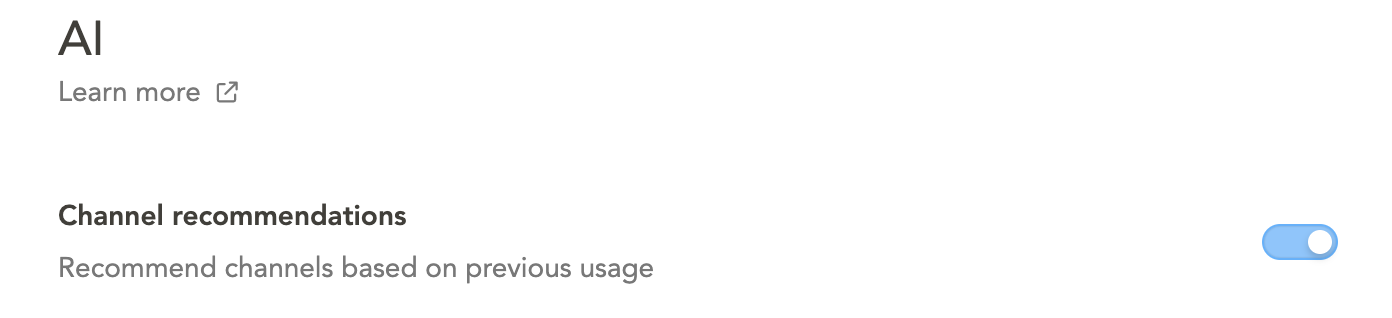
Channel recommendations
Analyzes your task history and suggests channels for new unassigned tasks. By default, suggestions are auto-applied.
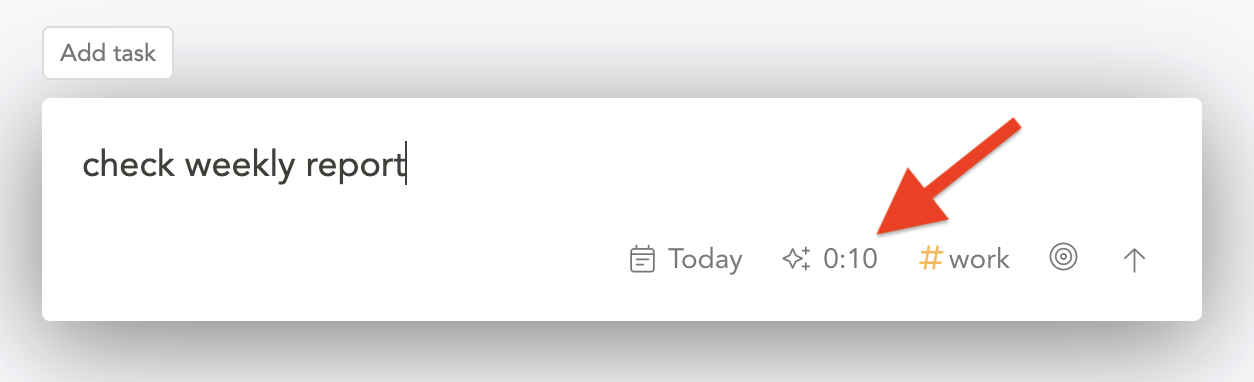
Planned time recommendations
Automatically assigns planned time estimates based on your task history.
Planned time recommendations for subtasks
When enabled, automatically assigns planned time for subtasks as well.
AI Summary Language
Select the language used for daily highlights AI summaries.
Automatic summaries
Toggle AI task and activity summarization in your daily highlights.
Profile
Change your name and profile picture.
Account Management
Change or Set password
Create a new password or modify your existing password for email/password sign-in.
Two-factor authentication
Ask for a 6-digit code from an authenticator app every time you sign in, on top of your password or Google/Microsoft sign-in. Sunsama uses TOTP, so 1Password, Authy, Google Authenticator, Bitwarden, and the built-in Passwords app on iOS and macOS all work. Setup is per-person, not per-workspace, and once it’s on it applies everywhere you sign in — web, desktop, iOS, and Android.
Sunsama shows you ten backup codes when you turn it on, and shows them once. Each one signs you in a single time. Store them where you can reach them without your phone, because they are stored hashed and cannot be shown or emailed to you again.
If you no longer have your authenticator app, use a backup code — both the sign-in screen and this settings section accept one in place of a 6-digit code, so you can turn 2FA off or move it to a new phone without the old device. If you’ve lost your authenticator app and all ten backup codes, write to support@sunsama.com from the email address on your account and we’ll verify the account is yours before removing the second factor.
If your workspace signs in through your company’s identity provider, your admin manages 2FA there and this section will say so.
Change primary email
Update the primary email address on your account.
Export my data
Generate a CSV or JSON file containing your task data:
- Task name
- Notes
- Assignee
- Completed and start dates
- Due date
- Subtasks
- Channel
- Planned time
Data is exported from your primary workspace only.
Logout all sessions
Log out of Sunsama across all your devices.
Delete account
Permanently delete your account and all associated data.
Mobile App
Disabled haptics
Turn off haptic feedback on the mobile app.
RTL Mode
Switch to right-to-left mode. Requires an app restart.
Five-minute intervals
Toggle between five-minute and one-minute time increments for the planning and actual time dials.
Left hand mode
Optimize the interface for left-handed thumb reach.