
Planned and Actual Times
Set time estimates and track actual time spent on tasks.
There are two types of “times” you can have entered on a task: planned time and actual time.
Planned time
Planned time is used to set time estimates on your individual tasks. The cumulative total of the planned times for your tasks make up your workload total for the day.
Set planned time on your tasks when you create them, or at any point during the day. As you type a new task, Sunsama can suggest a planned time based on similar tasks.
- Click on the clock icon on the task to add planned time
- Hover over or click on the task and type keyboard shortcut
W - During task creation, type
~then your planned time
Focused and parallel tasks
By default every task is Focused: its planned time gets its own slot when Sunsama projects your day onto the calendar. Mark a task Parallel when you can do it alongside other work, like a load of laundry while you answer email. Parallel tasks that sit next to each other in your task list share projected calendar time instead of stacking one after another, and a Focused task between them starts a new block.
Each parallel task keeps its own planned time. Your workload counter counts a run of parallel tasks once, as long as the longest of them, since that’s how long they take together.
To switch a task, open its planned time (click the clock icon or press W) and choose Focused or Parallel. Parallel tasks show a shuffle icon next to their time. On a recurring task, turn on Parallel in the repeat settings to apply it to every occurrence. You can also ask Sunny to make a task parallel.
Actual time
Use actual time to record how long tasks actually take to complete. You can do this several ways:
- Click on the clock icon on a task to add actual time
- Hover over or click on the task and type keyboard shortcut
E - Use the Task Timer (
Spacebar)
If you complete the task without adding actual time, the planned time will count as actual time if you’ve enabled that setting in your account settings.
Task timer
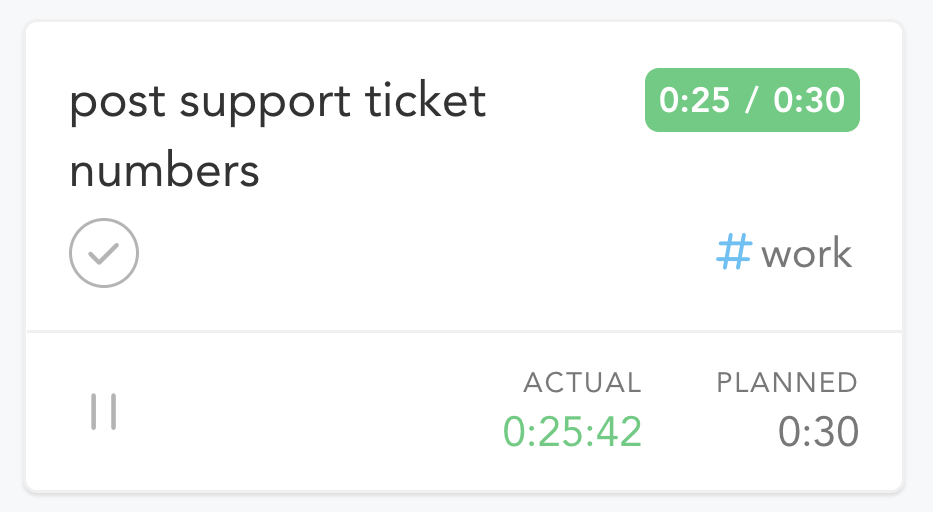
Running the timer on a task while you work on it is a great way to record accurate actual time and to stay focused.
To use the task timer:
- Click on the clock icon on a task and click the triangle “play” button
- Hover over or click on a task and hit the
Spacebar
By default, when you start the task timer, you will enter Focus Mode for that task. You can disable this setting in your account settings.
Timers on parallel tasks
Starting a timer on a task normally stops whichever timer was already running. When both tasks are Parallel, the first timer keeps going instead, so you can time a load of laundry and your email at the same time.
While timers overlap, your time is split evenly between them. Start a Parallel task at 1:00, a second one at 1:30, stop the first at 2:00 and the second at 4:00: the first counts 45 minutes (30 alone, then half of the next 30), and the second counts 2 hours 15 minutes. Each task still shows when you worked on it; its actual time is the share that was yours.
Starting a timer on a Focused task stops every other timer, and so does switching a running task to Focused. If a task’s split doesn’t look right, edit its actual time like any other; the change only affects that task.
Edit or delete tracked time
If a timer ran too long, or you need to add time you forgot to track, you can edit the entries behind a task’s actual time.
- Open the task’s actual time: click the clock icon, or hover the task and press
E. - Click Edit entries at the bottom. It appears once the task, or one of its subtasks, has tracked time.
An Actual time window opens with a list of entries (date, start, end and duration) and a calendar for the day. Changes save as you make them.
- Change an entry: click its date, start, end or duration. Changing the start moves the whole entry. Changing the end changes its length. An entry that runs past midnight shows +1d.
- Move an entry: pick a new date, or drag it on the calendar.
- Add an entry: click + Add an entry. It adds 30 minutes after your last entry.
- Delete an entry: click the X on its row. This works for entries that cross midnight too.
- Subtasks: time tracked on subtasks is grouped in a section for each subtask.
You can’t track time in the future, and you can’t edit an entry while its timer is running, so pause the timer first. The window shows only your own time on a task, so editing it never changes what a teammate tracked.
On the iPhone and Android apps, open the task’s timing sheet, go to Actual, and tap Edit entries. Your changes are saved together when you tap Done.
You can also ask Sunny to log, correct, move or clear tracked time for you.
Planned, actual, and task timer on subtasks
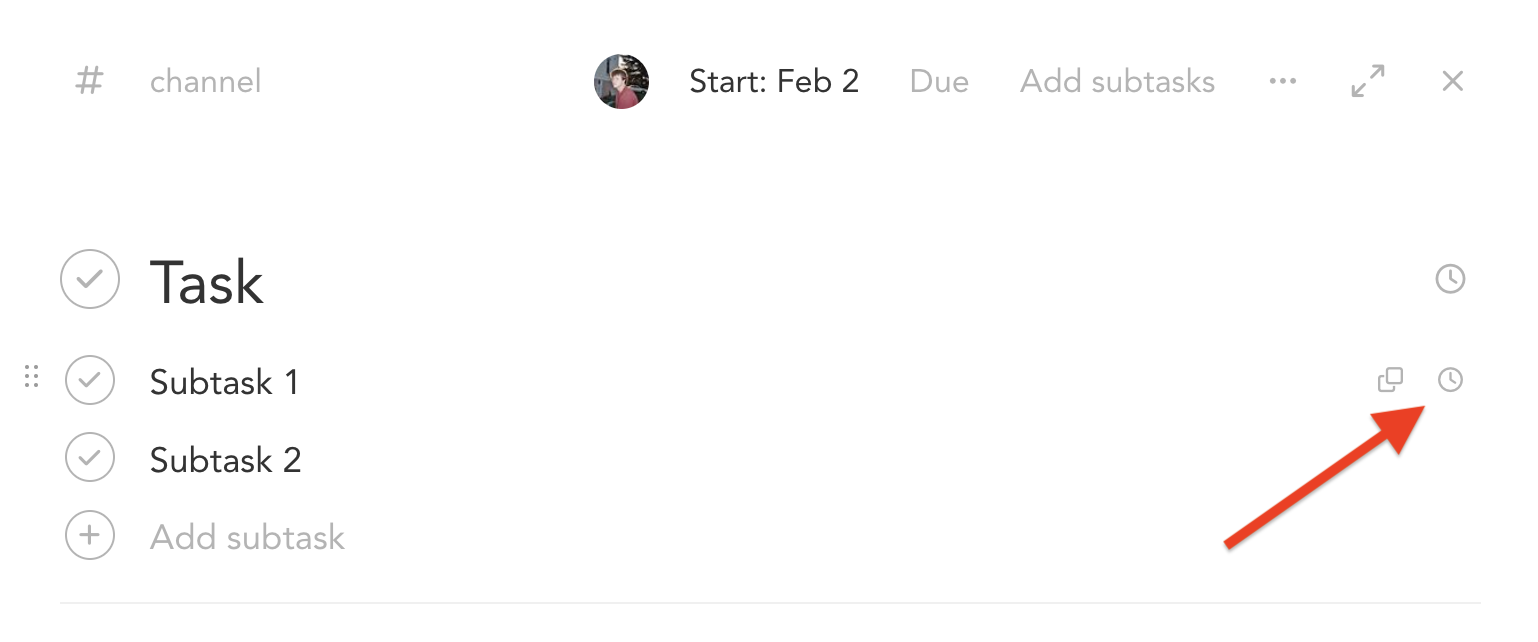
To add planned time, actual time, or run the timer on an individual subtask, open the task card and hover over the clock icon to reveal these fields for subtasks.
Different views of task time totals
If a task rolls over and/or has a working session on multiple days, the actual and planned times for a task will display depending on how you view the task.
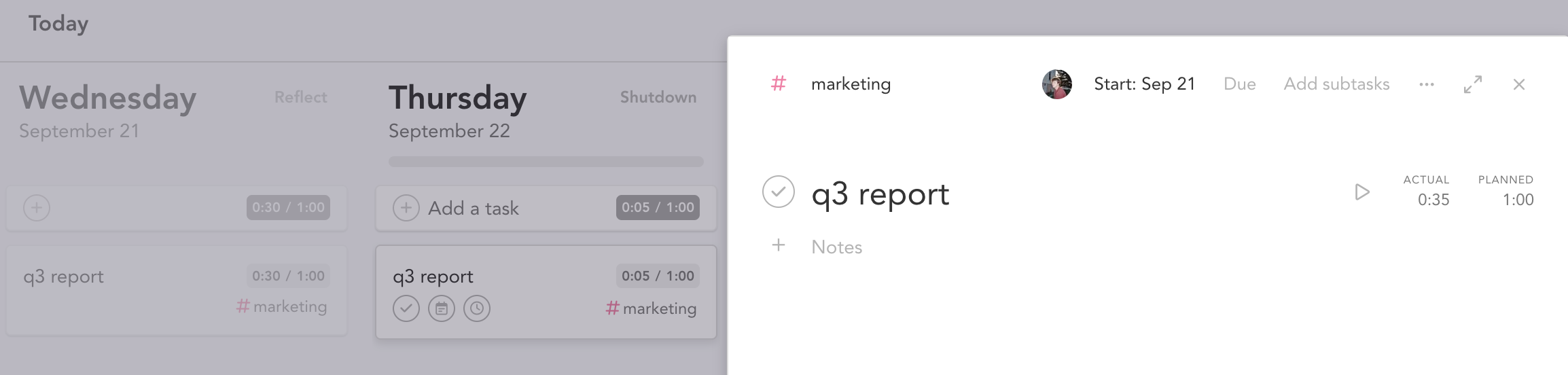
In the board view as well as in focus mode, the task will display the actual and planned times for that day respectively.
However, if you click on the task and open up the whole task card, you’ll be viewing the cumulative totals for all the actual and planned times for all instances of that task.
Workload counter in daily columns
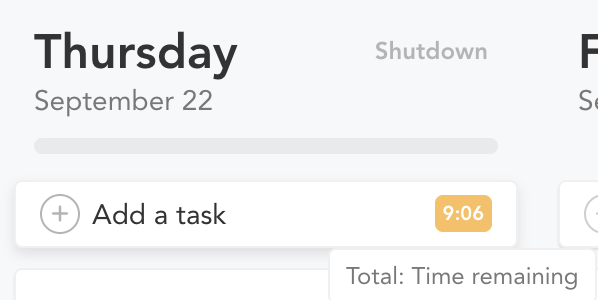
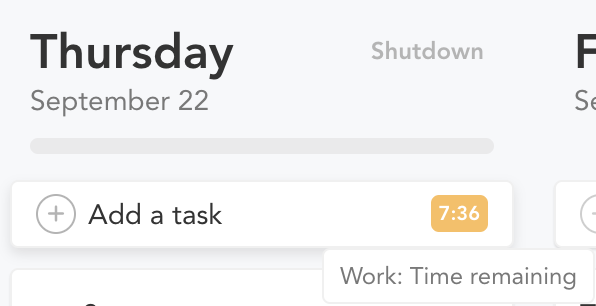
At the top of your daily column, you’ll see a time total. This is your workload counter. On today’s column, click it to cycle through three views of your time:
Time Remaining
This is the cumulative total of all the remaining planned times of your uncompleted tasks. On future days it reads Time Planned.
Work Time Remaining
This is the cumulative total of all the remaining planned times of your uncompleted tasks that are not assigned to a personal channel. On future days it reads Work Time Planned.
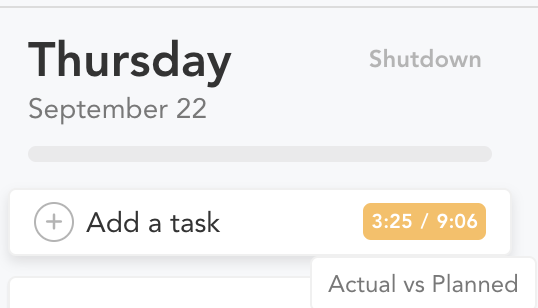
Actual vs Planned
The first number here is the sum of all the actual times on your tasks for the day. The second number is the sum of all of your planned times on your tasks for the day.
Workload threshold
If the sum of the planned times on tasks not assigned to personal channels approaches your workload threshold, your workload counter will show yellow. This is a visual indication that you have scheduled a workload that approaches but does not surpass your workload threshold for the day.
The workload counter will show red if your planned times exceed your workload threshold.