
Troubleshooting
Solutions to common issues with accounts, tasks, calendars, integrations, and apps.
Account
Problems you might be experiencing
- I accidentally created an account
- I am being forced to go through the first time planning guide again
Why this happens
The most common reason for this is that you “logged in” with a new email and accidentally created a new account.
How to fix
If already logged into the accidental account:
- Finish the first time onboarding (enter dummy data to move quickly)
- Go to your account settings and delete the account
- Then log back in with your usual account
If not logged in:
- Log in to Sunsama from here: app.sunsama.com/login - We recommend using a private or incognito window.
- Go to your account settings and scroll to the bottom and delete your account.
- Then log back in with your usual account.
Tasks
Missing tasks
Problems you might be experiencing:
- All my tasks disappeared
- I only see some of my tasks
- I’ve returned to Sunsama after a while and all my tasks are missing
Why this is happening:
It’s most likely that your tasks ended up in the archive after not being completed many days in a row, or you’ve got a channel/context selected that isn’t the “#all” channel and are only seeing tasks in that channel.
How to fix it:
- Check your archive. The archive is accessible through the “moon icon” in the right hand panel. Tasks that roll over without any completion activity end up there.
- Make sure you are in the #all channel. You can change your channel from the channel selector by clicking the “Filter” button at the top of your workspace or via the keyboard shortcuts
Shift F. - Make sure you are logged into the right Sunsama account. If you are returning after a long time, it’s easy to accidentally sign in with a different email account and create a brand new account. You can see what account you are logged into by clicking the “Sunsama” dropdown menu in the top right corner of the web and desktop app.
Tasks from my calendar are being auto-completed
When you import a meeting into your task list, Sunsama will automatically check it off when the end time of the meeting passes. You can change this setting by going to Settings > Calendars > Meeting import and changing the “Auto-complete imported calendar events” setting.
For more information, see: Understanding autocompletion
The time information on my tasks show differently in various views
Sunsama shows you different views of the same time data based on how you are viewing the task.
In the Kanban View and Focus Mode, you see the timing information for the current day only. If you’ve been working on the task for multiple days, you won’t see the cumulative time for the task.
In the task page view, you’ll see the cumulative time information for the task, across all days. You can click on the “actual time” to see the breakdown by day.
Calendars
Calendars not showing
Problems you might be experiencing:
- I can’t see all my calendars
- I don’t see the same calendars on web, desktop, and mobile
Why this is happening:
The most common reason you aren’t seeing your calendars is because you haven’t toggled them on on your particular device. The calendars in view are saved on a per-client basis.
How to fix it:
On web and desktop:
- Make sure you’ve got the correct calendars’ visibility toggled on. Click “Calendars” at the top of the Calendar panel, and click on calendars to toggle on/off their visibility.
- Go to Settings > Calendar and make sure the calendar is toggled as “Enabled”. When you enable a calendar, you add it to your list of calendars that are quickly accessible and visible in your workspace.
On mobile:
- Navigate to the calendar tab from the bottom menu.
- Click on the “Hamburger Menu” in the top left corner of the app (three lines).
- Make sure you’ve got the correct calendars toggled on. Visible calendars show a filled in colored circle.
- If you aren’t seeing the calendar in the list, click on “All calendars” and toggle the calendar on, then return to the last step to toggle it on.
Integrations
Wrong account connected
Problems you might be experiencing:
- I connected the wrong account to Sunsama when integrating a tool
- I keep connecting to the wrong account
Why this is happening:
Browsers will often automatically connect Sunsama to whatever account is already logged into your other tools.
How to fix:
- Remove your integration in Sunsama. You do this from your Workspace Settings. Click on the main “Sunsama” dropdown in the top left corner, then click “Workspace Settings”. Scroll to the relevant integration and click “Remove”.
- Re-add your integration. It’s helpful to make sure you are logged out of the third party tool or already logged in with the account you want to integrate before you add the integration. You may also try this process within a private or incognito browser, which will force you to log in to the correct account each step of the way.
Error message: “Speak with your GSuite administrator”
If you are seeing this error message in your Gmail Integration: “It looks like you do not have the Gmail service enabled. Please speak with your GSuite administrator” you can try these reset steps:
- Sign out of Sunsama completely
- Go to Google’s Account Permissions and Revoke Sunsama’s Permissions
- Sign back into Sunsama from this link: app.sunsama.com/signup
- When prompted with Google permissions, make sure to check off the check box granting access to email
- Re-add the Gmail integration
If you run into any issues, please write to us at support@sunsama.com with a screen recording and/or more details.
Google Domain Migration
Problems you might be experiencing:
- My company migrated our Google Domain to a new domain and I’m not seeing my calendars
- My calendars and emails are no longer working
How to fix:
- Remove your calendar integration from your workspace settings.
- Go to your account settings and scroll to the bottom and change your primary email to your new one. This will require you to logout and then login with your new email.
- Go back to your workspace settings and re-add the calendar integration. This time make sure you authorize Google with the new account.
Please Re-add the Gmail Integration
This can happen when Sunsama’s authorization to Gmail is revoked. This can happen for a variety of reasons like changing your password.
The first thing to try is to simply re-add the Gmail integration:
- Click the “Re-add Gmail Account” button you see inside the Gmail panel.
- When you see the Google permissions screen be sure to check off any check boxes related to providing email access.
If that doesn’t work, you can attempt a full reset of your Gmail permissions:
- Sign out of Sunsama completely
- Go to Google’s Account Permissions Page and Revoke Sunsama’s Permissions
- Sign back into Sunsama from this link: app.sunsama.com/signup
- When prompted with Google permissions, make sure to check off the check box granting access to email
- Re-add the Gmail integration from your workspace settings
All my emails aren’t loading or showing
Please try the following:
- Ensure you don’t have multiple labels simultaneously selected. Sunsama will only show emails that match all selected labels.
- Click “Filter” and make sure to show archived and imported emails.
“Need Admin Approval”
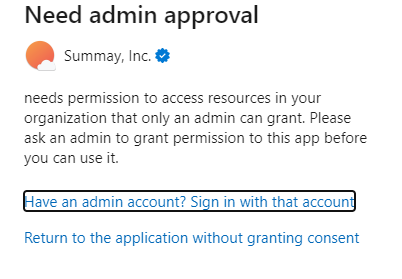
When you add an Outlook calendar (or any Microsoft integration) in Sunsama, you must give Sunsama access to your Microsoft data. This happens via a consent (OAuth) flow between Sunsama and Microsoft.
If you see the screen that says “Need admin approval”, it means your organization’s Microsoft Entra ID (formerly Azure AD) tenant is configured so that regular users can’t consent to third-party apps on their own. An administrator has to approve Sunsama once for the whole organization — after that, the prompt disappears for everyone and no individual user ever needs an admin account.
What an IT admin needs to do
An admin (a Global Administrator, Privileged Role Administrator, Cloud Application Administrator, or Application Administrator) grants tenant-wide admin consent. There are two ways:
Option A — One-click admin consent link (fastest)
Have an admin open this link while signed in with their admin account, review the permissions, and approve:
https://login.microsoftonline.com/organizations/adminconsent?client_id=3825b9ca-270f-4e5b-b98e-a97bc5efb990This registers Sunsama in your tenant and grants consent in a single step. (3825b9ca-270f-4e5b-b98e-a97bc5efb990 is Sunsama’s Microsoft application ID — it’s not secret; it appears in the Microsoft sign-in URL itself.)
Option B — Through the Entra / Azure portal
- Sign in to the Microsoft Entra admin center (or Azure portal) as an admin.
- Go to Identity → Applications → Enterprise applications → All applications. (If the menu is hidden, use Menu → All Services → Identity → Enterprise applications, or this direct link.)
- Search for Sunsama and select it. (If it isn’t listed yet, have one user attempt the integration first — that registers the app in your tenant so it appears here.)
- Under Security, select Permissions.
- Review the requested permissions, then click Grant admin consent for [your organization].
Permissions Sunsama requests
All of Sunsama’s Microsoft permissions are delegated (they act on behalf of the signed-in user — none are tenant-wide application permissions). Sunsama is also a Microsoft verified publisher (Summay, Inc.).
| Integration | Microsoft Graph permissions |
|---|---|
| Sign-in (all) | User.Read, openid, email, profile, offline_access |
| Outlook Calendar | Calendars.ReadWrite, MailboxSettings.Read |
| Outlook Email | Mail.ReadWrite |
| Microsoft To-Do | Tasks.ReadWrite, Tasks.ReadWrite.Shared |
| Microsoft Planner | Group.Read.All, GroupMember.Read.All, Tasks.ReadWrite, Tasks.ReadWrite.Shared |
| Microsoft Teams | Team.ReadBasic.All, Channel.ReadBasic.All, Channel.Create, ChannelMessage.Send, Group.Read.All, GroupMember.Read.All, TeamsAppInstallation.ReadWriteForUser, Presence.ReadWrite |
Consent can be granted per integration — approving Calendar does not pull in the Teams or Mail permissions.
References:
- Grant tenant-wide admin consent to an application
- Overview of user and admin consent
- Configure how users consent to applications
Mobile App
Beta Expired on iOS
If you can no longer use the mobile app because it says the beta is expired, please just re-open TestFlight on iOS and “Update” Sunsama to the latest version.
I can’t install the iOS app via TestFlight because it’s asking for a code
Kill the TestFlight app entirely and then follow the Sunsama TestFlight URL again.
No Tasks or Days Planned show on Mobile App
Before you are able to see tasks or planned days on the mobile app or in a browser on mobile, you must first go through the Daily Planning Ritual once while logged into Sunsama on a desktop computer or laptop. This will unlock the mobile app.
Desktop App
Desktop app is too small or too big
- Zoom in to the desktop app with the key combination
CMD Shift + - Zoom out of the desktop app with the key combination
CMD -
Dark Mode on Mac
Scroll bars show in light mode but Sunsama is in dark mode
If you’re experiencing light scroll bars constantly displaying while Sunsama is in dark mode, there are some settings you can adjust on your computer that should hide them most of the time.
Go to System Preferences > General.
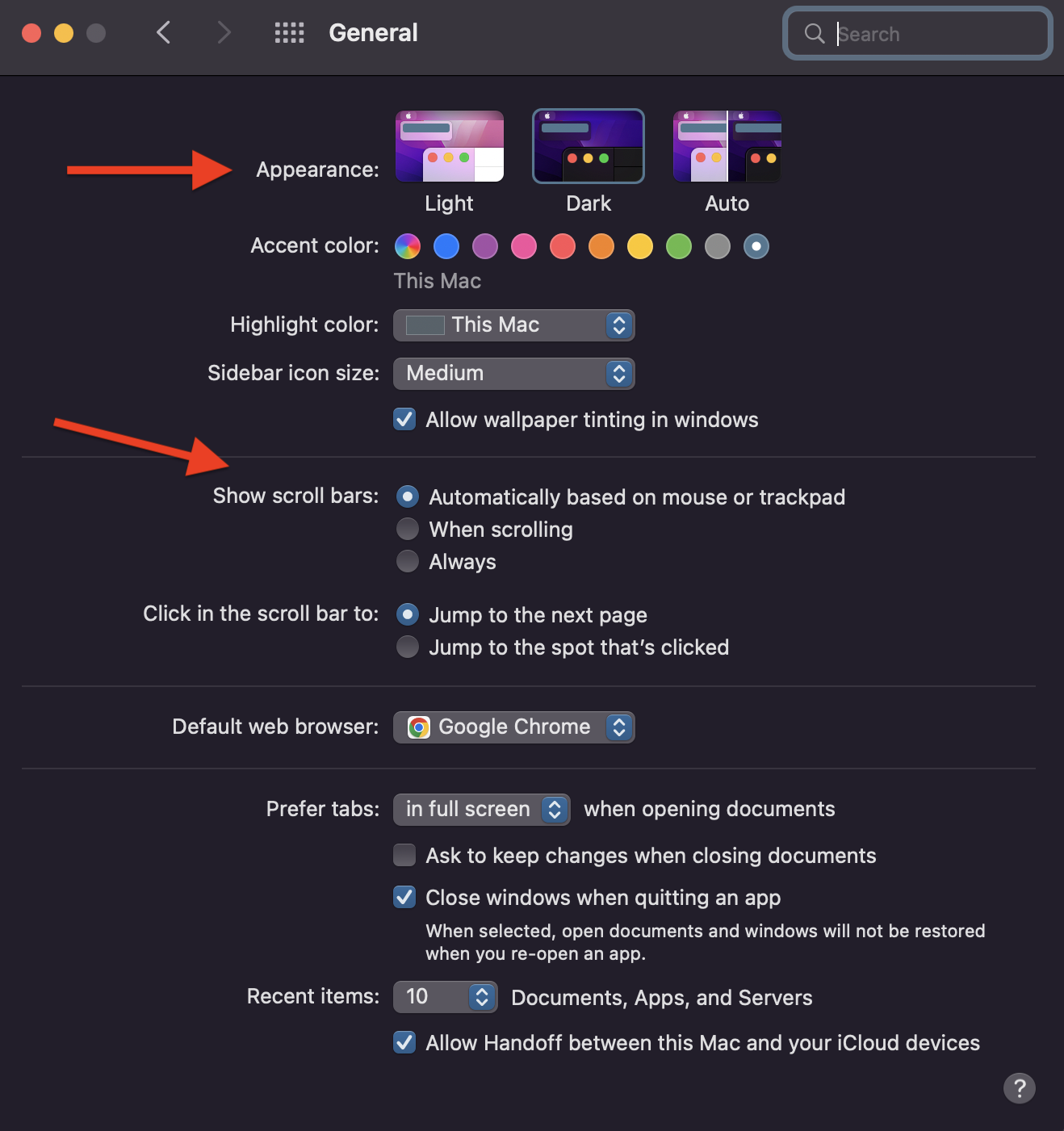
If your “Appearance” setting is set to “Light” and your “Show scroll bars” setting is set to “Always”, you will always see these light scroll bars.
- Changing the “Appearance” setting to “Dark” will often fix the scroll bars. Changing the setting to “Auto” may fix how they display, depending on the time of day and other settings.
- Alternatively, you can change the “Show scroll bars” setting to “Automatically…” or “When scrolling” to hide the light scroll bars, until your mouse hovers over them.