
Toggl Track Integration
Connect your Toggl Track account to send Sunsama time tracking data to Toggl Track.
Send the time you track in Sunsama to Toggl Track, so your timers and actual time show up in Toggl Track’s reports without logging them twice. You choose which channels sync and which Toggl Track project, task and tags each one uses.
Installation and account management
- In Sunsama, go to Settings > Integrations > Toggl Track.
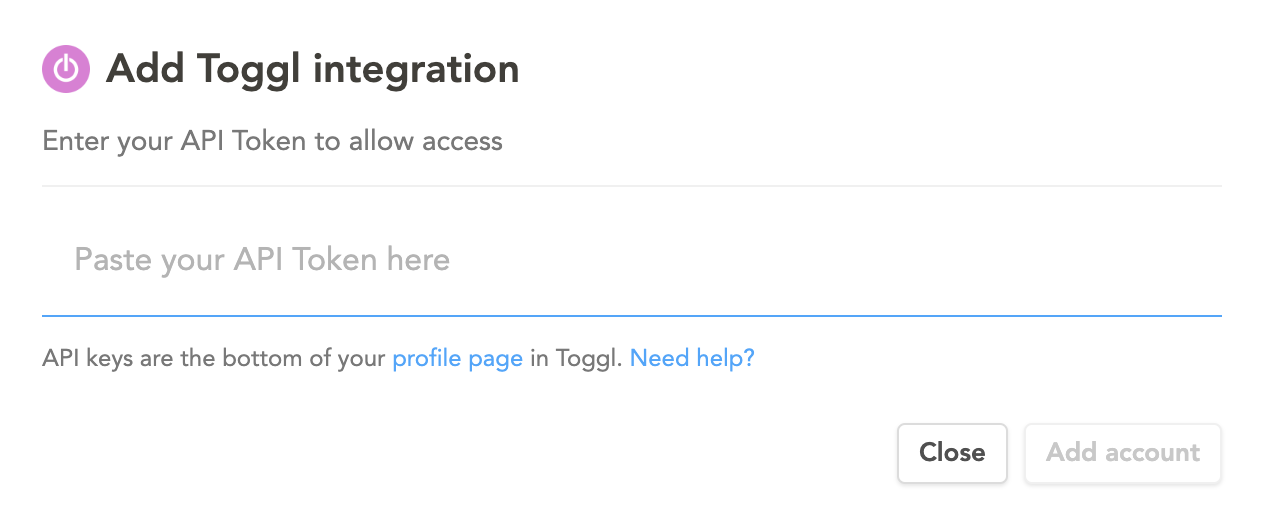
- Click Add Toggl Track account.
- Paste your Toggl Track API token, found at the bottom of your Toggl Track profile page.
- Click Add account.
You can connect one Toggl Track account.
Settings and synced fields
The Toggl Track settings page controls which tasks sync and how their time is logged in Toggl Track.
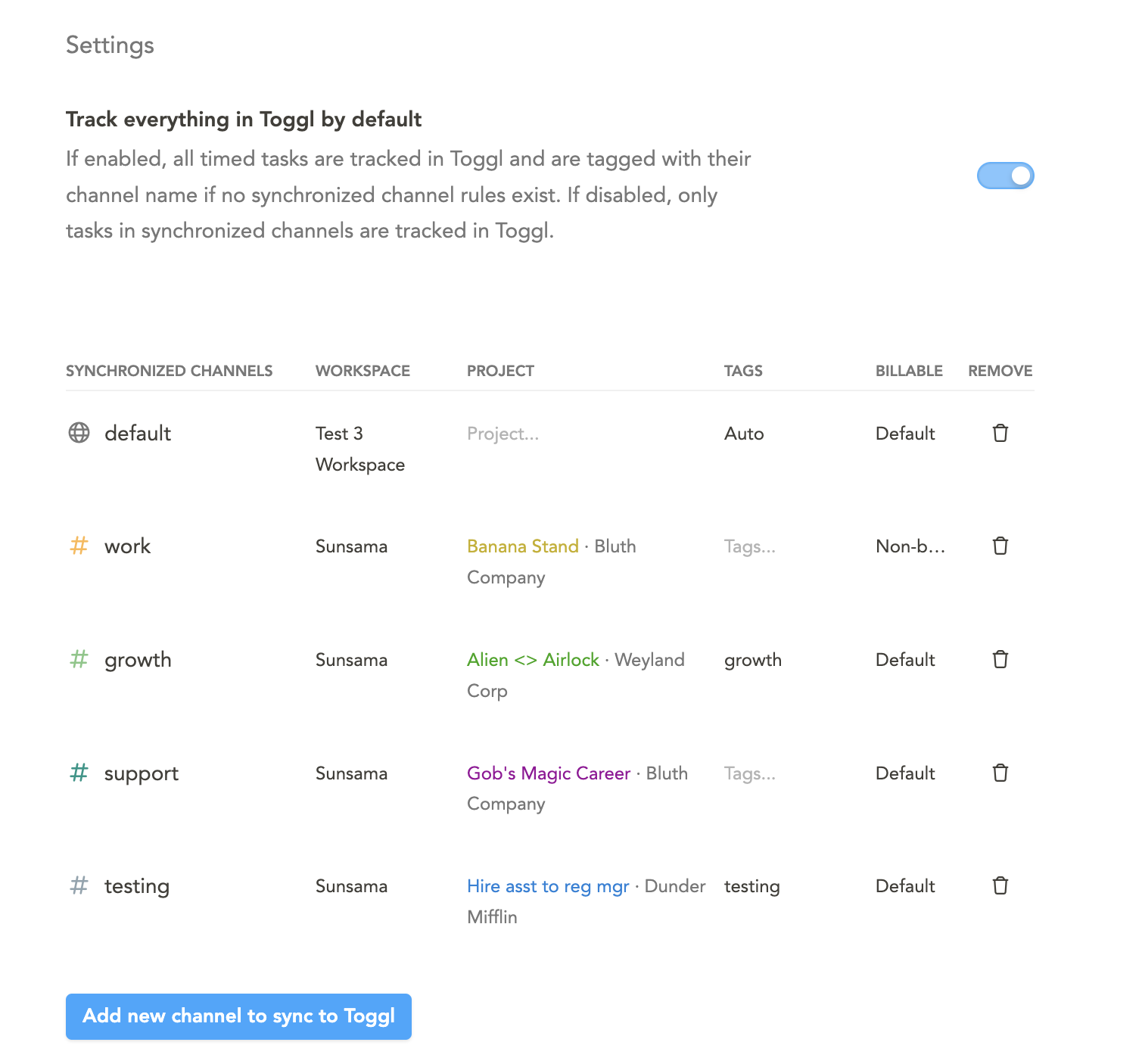
Track everything in Toggl Track by default
Turn this on to track every timed task in Toggl Track, whatever its channel. This is a quick way to start seeing your actual time across the board. Entries for tasks without a synchronized channel are tagged with the task’s channel name.
If you also set up synchronized channels, their settings win, and this setting covers every other task.
Synchronized channels
Configure synchronized channels to sync timer data from specific Sunsama channels to Toggl Track. This is useful for both categorizing your timer entries in Toggl Track automatically, and also controlling what is synced (for example so you do not sync your personal tasks to Toggl Track).
Click “Add new channel to sync to Toggl Track” to configure the synchronization. First, select which channel or context to sync, then select:
- Which Toggl Track workspace to sync to (if applicable)
- Which project to sync the Sunsama channel to
- Which task within that project to assign timer entries to — useful if your Toggl Track workspace uses pre-defined tasks (e.g. “Admin”, “Software Dev”) that must be set on every time entry. This requires a Toggl Track Starter plan or higher.
- Which Toggl Track tags to tag the timer entries with
- Whether or not to log these timer entries as billable or non-billable (this feature is not available for free-tier Toggl Track accounts)
How to sync time tracking to Toggl Track
Once connected, the time you track on a task today is logged as time entries in Toggl Track, in both its timer list and calendar views. Sunsama keeps each task’s Toggl Track entries for today matching the time tracked in Sunsama.
Via task timer
When you start a task timer in Sunsama, a timer starts in Toggl Track. When you stop it, the Toggl Track timer stops and the entry is logged. Each time you start and stop the timer on a task, Toggl Track gets another entry for that task.
Via editing actual time
When you add, edit or remove actual time on a task today, Sunsama replaces that task’s Toggl Track entries for today to match. Each entry uses the start and end times Sunsama has stored for that time.
Via task completion
If Count planned time as actual time is on and a task has no tracked time, completing it logs actual time, which is then sent to Toggl Track:
- For a task, its timeboxed or planned time is logged.
- For an imported calendar event, the event’s time is logged.
Subtask behavior
Time tracked on a subtask is logged with the task name followed by the subtask name, for example Write report • Outline. This applies whether you run the timer on the subtask or enter its actual time by hand. A subtask with no actual time gets no entry of its own; only the parent task is logged.
Troubleshooting
Time from a past day isn’t in Toggl Track
Sunsama only syncs time tracked today. If you add or change actual time on an earlier day, for example by importing an event that has already passed, add or edit the entry in Toggl Track yourself.
Timer entries are missing
Using Toggl Track for time analytics
Watch this video for a basic overview of using Toggl Track to capture and report your time analytics: