
Task Management Pro-Tips
Best practices and guidelines for dealing with tasks.
Where do I put tasks if I don’t know what day I want to do them?
Use Sunsama’s lightweight backlog for storing tasks intended for future work but without specific day commitments. Toggle the backlog via Shift B or the filing box icon in the right panel.
Using shortcuts while creating a task
Create tasks quickly with keyboard shortcuts while typing the title:
#assigns a channel~sets time estimate or planned time@sets start date (e.g.,@tomorrow,@dec 14,@backlog)$aligns with an objective!sets priority level
Quickly create tasks from outside Sunsama and from other tools
With the desktop app running, use the Global Add Task shortcut (Cmd Shift A or Ctrl Shift A for Windows/Linux). The Add via URL feature creates tasks from integrations or websites without manual importing.
Viewing all tasks in a list
The search panel (magnifying glass icon, Cmd/Ctrl F) returns filtered task lists. Filter by task type, date range, and channel to locate specific task sets.
Choosing a “Backlog” tool
Sunsama functions as a daily and weekly task list, not a comprehensive project planner. When your backlog, archive, or today’s list accumulate extensively, integrate robust tools like Todoist, Trello, Asana, or ClickUp. Trello and Notion integrations enable bidirectional task movement.
Dealing with multi-day tasks
Multiple strategies exist for multi-day task management:
As a single task
- Create one large task
- Add constituent pieces as notes
- Convert today’s pieces to subtasks
- Upon completion, convert the next piece to a subtask and bump the parent to the desired day
Via subtasks
- Create a single task
- Add all pieces as subtasks
- Add time estimates to today’s subtasks
- Upon completion, bump the parent task and repeat
From an integration
Use the strategies above or pull the task fresh daily, renaming specifically for today’s work.
Using Weekly Objectives
Consider Weekly Objectives for single multi-day tasks or tasks normally requiring multiple subtasks.
Should recurring work be a recurring task or a recurring event?
Recurring tasks provide flexibility for daily/weekly work timing adjustments. Recurring events suit fixed appointments. For example, email review happens at varying times daily (recurring task), while “pick up kids from school” requires fixed timing (recurring event via calendar).
Counting actual work against your workload counter
Two approaches:
- Don’t import calendar items into the task list; remove auto-imported items via right-click
- Add items to a “Personal” context (never counts against work time)
Not losing sight of tasks in the Archive or Backlog
Create a recurring task titled “Review Backlog and Archive” as a reminder. Set recurrence frequency based on your usage patterns (weekly on Mondays, weekdays, etc.).
Decluttering your task view
Minimize attention residue through:
- Hiding subtasks via right-click (unhide when actively working); update all instances of recurring tasks simultaneously
- Using Today View and Focus Mode
- Filtering to relevant contexts during work periods
- Moving uncompleted tasks to tomorrow, backlog, or deletion (today’s column should only contain accomplishable items)
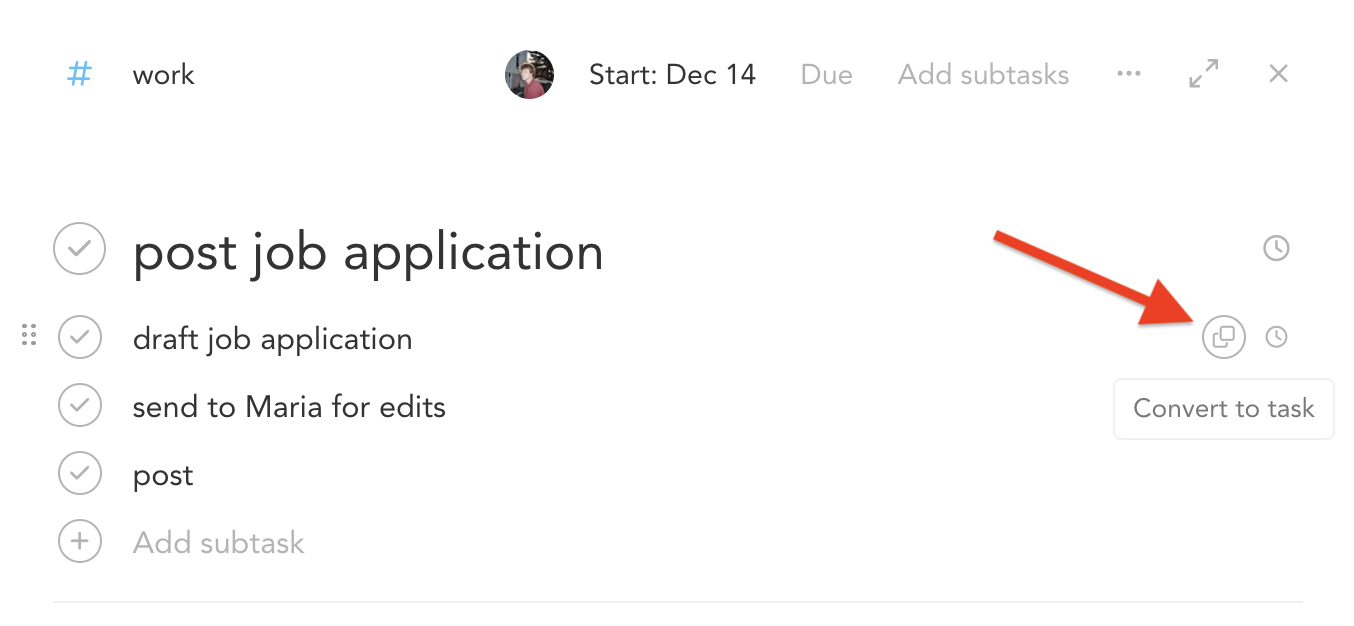
Converting subtasks to tasks
Open the task details and hover over subtasks to reveal a conversion button.
Creating task templates
Create a task in the backlog under a “Templates” channel. Duplicate templates via the task menu or keyboard shortcuts (Cmd D or Ctrl D on Windows/Linux).
I forgot to stop the timer on a task/subtask that rolled over
Workaround for overnight timer issues:
- Consolidate the task/subtask to one daily column (delete/recreate or clear actual time history)
- Move to the previous day for accurate logging
- With actual times cleared and the task appearing only in yesterday’s column, set the actual time
- Uncheck the task in yesterday’s column to display accurate history plus the uncompleted task today
Sorting the task list
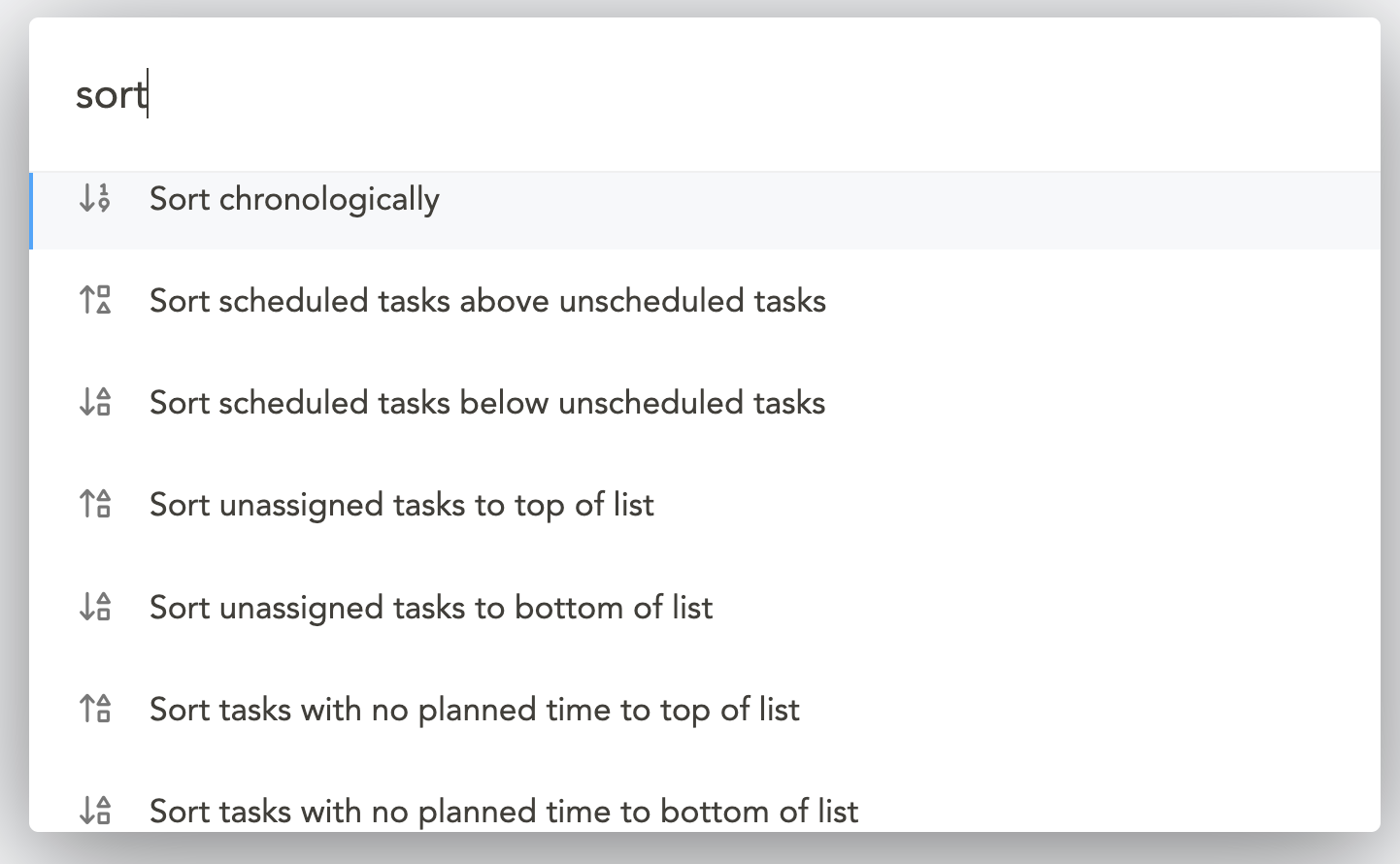
Sunsama auto-sorts chronologically when importing calendar tasks or timeboxing. Manual adjustments persist. Access sorting via the Command Palette (Cmd K or Ctrl K), then type “sort”:
- Sort Chronologically – orders by time, moves unscheduled tasks per user preference
- Sort scheduled tasks above/below unscheduled – identifies tasks requiring calendar scheduling
- Sort unassigned tasks – locates channel-unassigned tasks
- Sort tasks with no planned time – finds tasks lacking time estimates
- Reorder by priority – sorts the focused day’s tasks by priority once
For ongoing maintenance instead of one-shot sorts, Auto-sort keeps your daily list ordered automatically as you create or update tasks.
How do I hide subtasks?
Right click on a task and select “hide/reveal subtasks” to collapse or show subtasks on the task list view.