
AI Connected Apps
Connect your other apps to Sunny and agentic daily planning so they can work with what's in them.
AI Connected Apps let Sunny and agentic daily planning work with what’s in your other apps: your error tracker, notes, docs and more. Any app that has an MCP server can be connected. MCP (Model Context Protocol) is an open standard that apps use to let AI assistants read and act on their content.
Connected apps are used only by Sunny and agentic daily planning. They don’t add tasks to your lists or sync anything on their own the way Sunsama’s other integrations do.
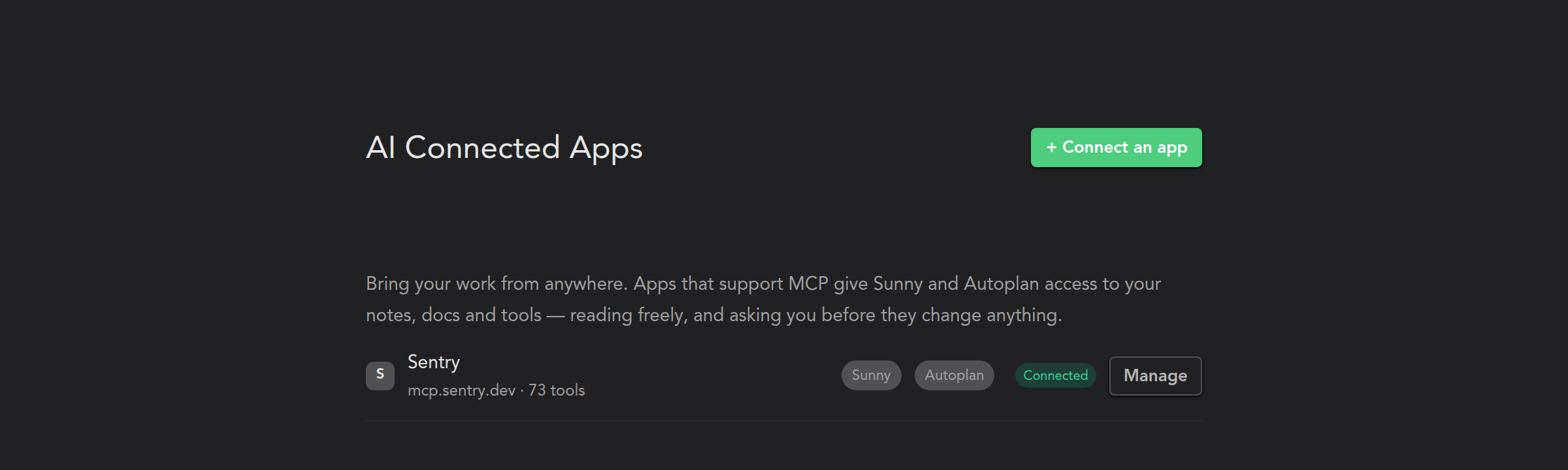
Connecting an app
You can connect an app from any of these places:
- Settings → Integrations → AI Connected Apps, then click Connect an app.
- The Apps button in the right sidebar, then Connect an app.
- The + in Sunny’s message box.
- By asking Sunny, like “Connect Sentry”. Sunny shows a card with a Sign in button.
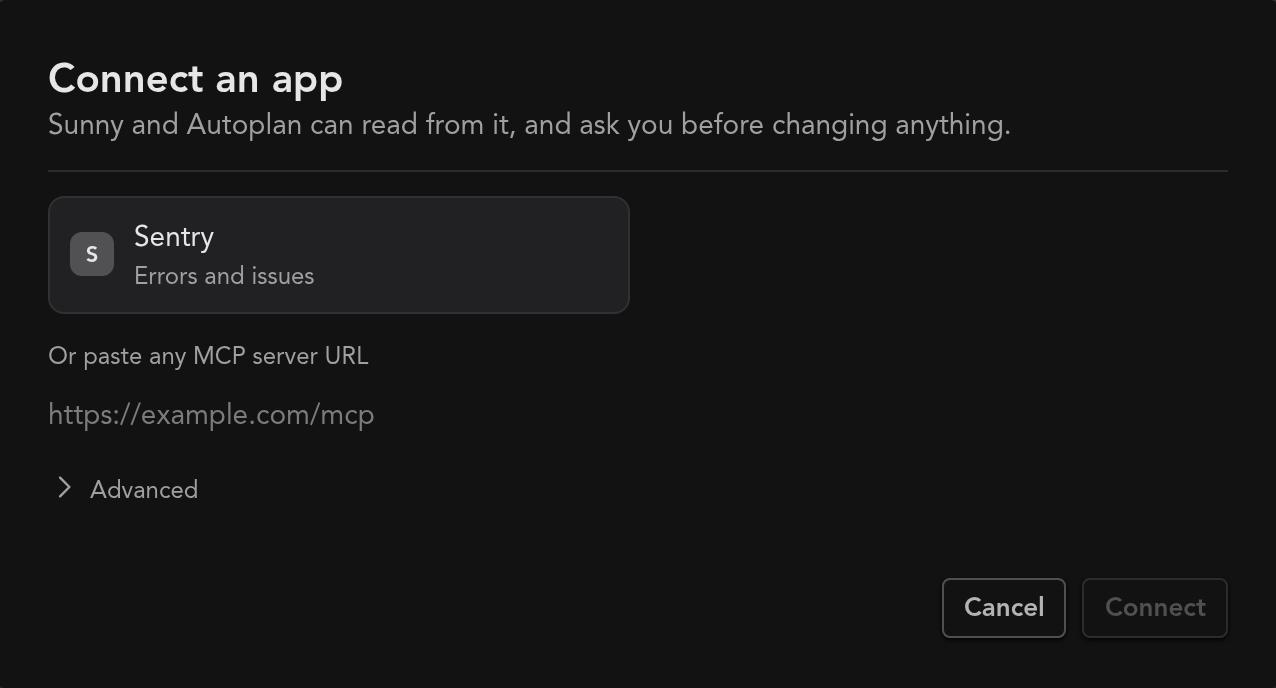
Then:
- Pick an app from the list, or paste its MCP server URL. App providers list this URL in their docs, usually under “MCP”.
- If the app asks you to sign in, a window opens. Sign in and approve access. In the desktop app, this happens in your browser.
- The window closes by itself and the app shows as Connected.
If the app uses an API key instead of a sign-in, open Advanced and choose API key / header. You can also give the app a name there; otherwise its name comes from the app itself.
You can connect up to 20 apps.
Using connected apps with Sunny
Once an app is connected, just ask Sunny about it, like “What are the newest errors in Sentry?” Sunny picks the right app on its own.
Sunny reads from your apps without asking. Before it changes anything in an app, like creating or editing something, it shows a card describing what it’s about to do:
- Allow once runs it this time.
- Always allow runs it and stops asking for that action.
- Deny stops it.
To turn an app off for one conversation, click the + in Sunny’s message box and switch it off. It stays connected and comes back in your next conversation.
You can also start a conversation about one app: click the Apps button in the right sidebar and pick the app.
Using connected apps with agentic daily planning
When it plans your day, agentic daily planning can read from your connected apps, so something waiting for you in another app can make it into your plan. It only uses actions that read and are set to Allowed, so it never changes anything in another app.
Choosing what each app can do
Open Settings → Integrations → AI Connected Apps and click Manage next to an app.
- Tools lists every action the app offers, marked Read or Write. Set each one to:
- Allowed: used without asking. Actions that only read start here.
- Ask first: Sunny asks you each time. Actions that change something start here.
- Never: not used at all.
- Refresh tools fetches the app’s current list of actions, if the app has added new ones.
- Disconnect removes the app and the sign-in Sunsama stored for it.
If an app won’t connect
Not every app lets new services connect to its MCP server yet. When one refuses, Sunsama shows what the app replied and what it usually means. If you’d like Sunsama to support that app, click Ask Sunny to request it: Sunny upvotes the request on Sunsama’s public roadmap, or creates one.
If an app shows Signed out, your sign-in expired or was revoked. Click Sign in again next to it.
Privacy and security
- Only you can see or use the apps you connect. They aren’t shared with other members of your workspace.
- Sign-ins and API keys are stored encrypted, and are never sent to your browser.
- When Sunny uses an app, the details of that request go to the app, and what the app returns goes to Sunny’s AI model, like the rest of your conversation.
- Leaving a workspace or deleting your account removes the apps you connected.